
Claude, ChatGPT & API keys
Ask Maya from inside Claude, ChatGPT, or tools like Claude Code and Cursor.
Use Onyx from Claude, ChatGPT, or your own tooling. The assistant answers there exactly as it does here — same knowledge base, same citations, same refusal to guess — as you, scoped to your own organisation.
Open Settings → Integrations. At the top is Your MCP URL:
https://supporthub.getonyx.dev/api/mcpPaste it into any client that supports remote (HTTP) MCP servers — use Copy beside it.
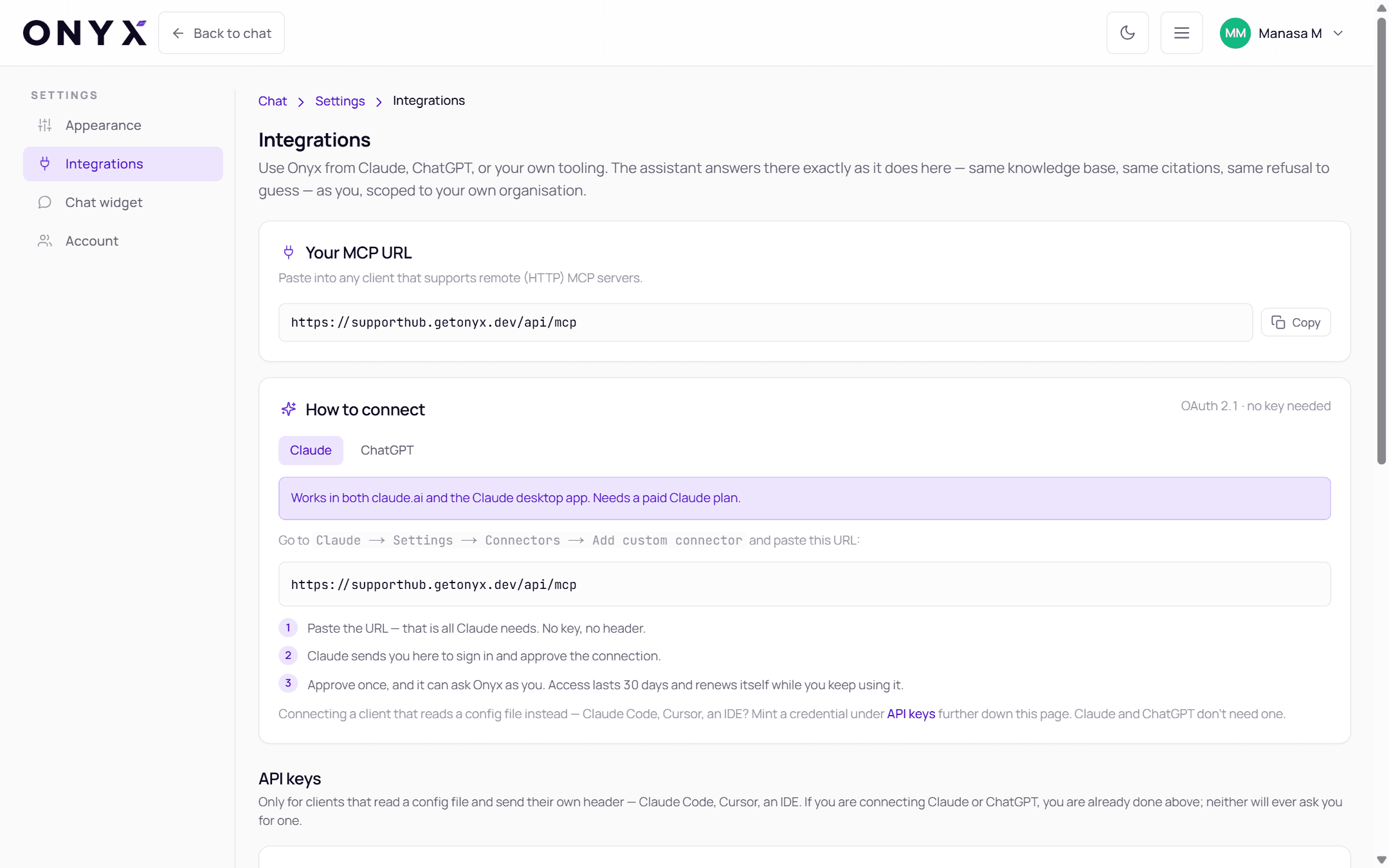
Connect Claude or ChatGPT
These use OAuth 2.1 · no key needed — you approve once with your Onyx account.
Works in both claude.ai and the Claude desktop app. Needs a paid Claude plan.
In Claude, go to Settings → Connectors → Add custom connector.
Paste Your MCP URL and save.
Claude sends you to SupportHub to sign in and approve the connection. That's all — no key, no header.
Approve once, and it can ask Onyx as you. Access lasts 30 days and renews itself while you keep using it.
Available tools
What the assistant can do once connected:
| Tool | Does |
|---|---|
| ask_onyx | Ask a Microsoft licensing question. Grounded in the Getonyx knowledge base, always cited, and abstains rather than guessing. |
| list_bookmarks | List the answers you bookmarked in Support Hub, with how old each snapshot is. |
| get_bookmark | Read one bookmarked answer in full. |
Questions you ask this way also appear in your SupportHub conversation history, labelled with the app they came from. If Maya hands a question off, the specialist's reply comes back into your SupportHub chat and your email.
API keys (Claude Code, Cursor, VS Code…)
Only for clients that read a config file and send their own header — Claude Code, Cursor, an IDE. If you're connecting Claude or ChatGPT you're already done above; neither will ever ask you for a key.
Generate a key
Under API keys → Your keys, give it a name ("Name (optional, e.g. Claude Code)") and choose Generate key.
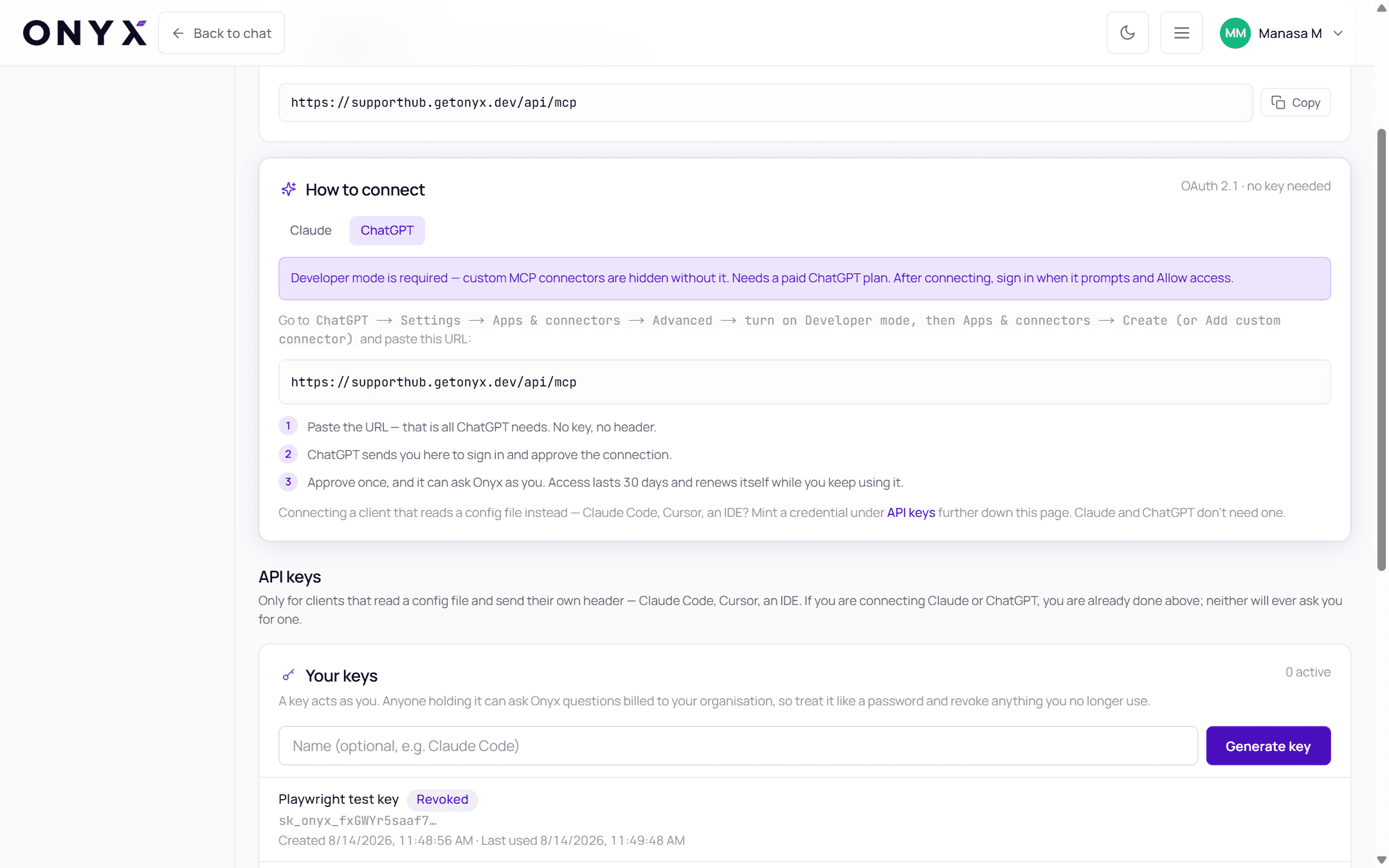
Copy it now
Copy this key now — it can't be shown again. SupportHub also shows a Config block — your URL and your key, already assembled — ready to paste into your tool's MCP settings.
Revoke keys you don't use
Each key under Your keys shows its name, status, the start of the key, and when it was created and last used, with Revoke this key. Revoked keys stay listed, marked Revoked.
Treat a key like a password
A key acts as you. Anyone holding it can ask Onyx questions billed to your organisation, so keep it private and revoke anything you no longer use. You can have up to 10 active keys.
Limits
Each connection can make 10 requests a minute and 300 a day.