Settings
Appearance
Choose light or dark, and how dense the layout is.
Open Settings from the bottom of the sidebar, or Account menu → Settings. Back to chat (top left) returns you to Maya. Settings has four pages:
| Page | What's there |
|---|---|
| Appearance | Theme and display density |
| Integrations | Connect Claude, ChatGPT or your own tooling — see Claude, ChatGPT & API keys |
| Chat widget | Embed Maya on a website — admins only, see Website widget |
| Account | Your profile and organisation — see Account |
Appearance
How Onyx looks on this browser. Changes apply immediately, everywhere in the product.
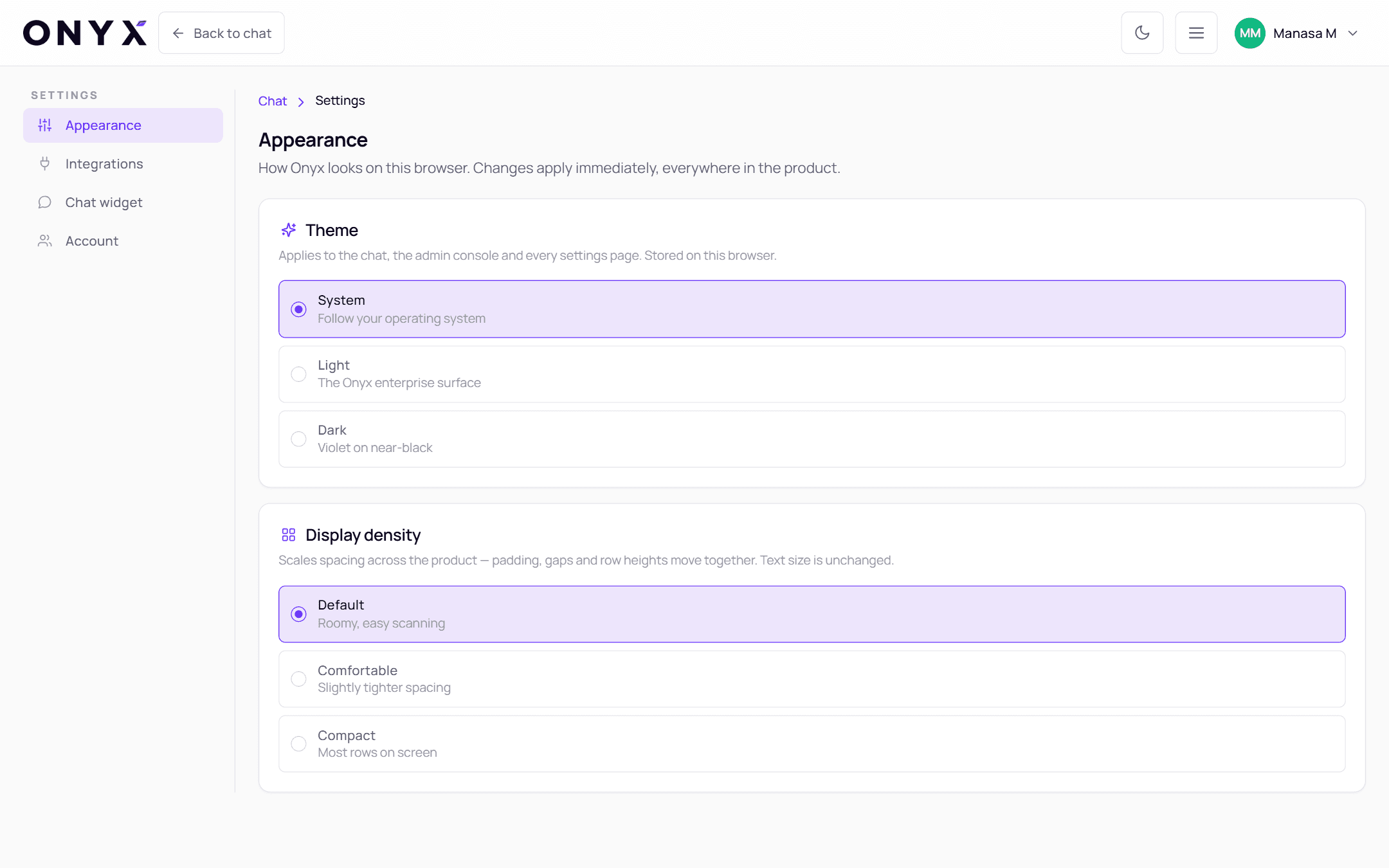
Theme
| Option | |
|---|---|
| System | Follow your operating system |
| Light | The Onyx enterprise surface |
| Dark | Violet on near-black |
The theme applies to the chat and every settings page. It's stored in this browser, so set it once per device. You can also switch theme from the ☀ button in the header.
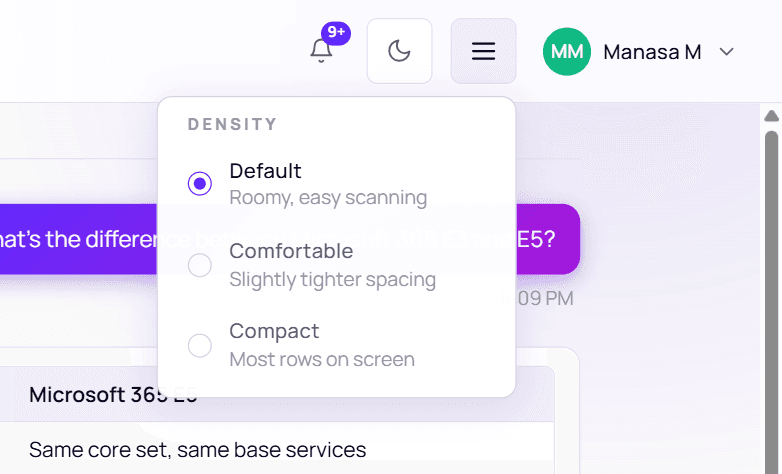
Display density
| Option | |
|---|---|
| Default | Roomy, easy scanning |
| Comfortable | Slightly tighter spacing |
| Compact | Most rows on screen |
Density scales spacing across the product — padding, gaps and row heights move together. Text size is unchanged. It's also in the ▤ menu in the header: