
Create & embed a widget
Put Maya on your own website with one line of code — for organisation admins.
The chat widget puts a Maya launcher on any website you run. Your visitors click it and ask Microsoft licensing questions — no Onyx account needed.
Who can do this
Widgets are managed by organisation admins, under Settings → Chat widget (supporthub.getonyx.dev/settings/widget). Each organisation sees only its own widgets.
Create a widget
Open Chat widget
Go to Settings → Chat widget — Put the assistant on a customer's own website with one script tag. Each widget is its own key, with its own appearance and abuse caps.
New widget
Choose New widget and fill in:
- Name — for your own reference, for example "Arrow public site"
- Customer (optional) — leave it as Microsoft knowledge base only for a general widget
Then Create widget.
Copy the snippet
Your widget card shows Paste this into any website, with a one-line snippet and a Copy button:
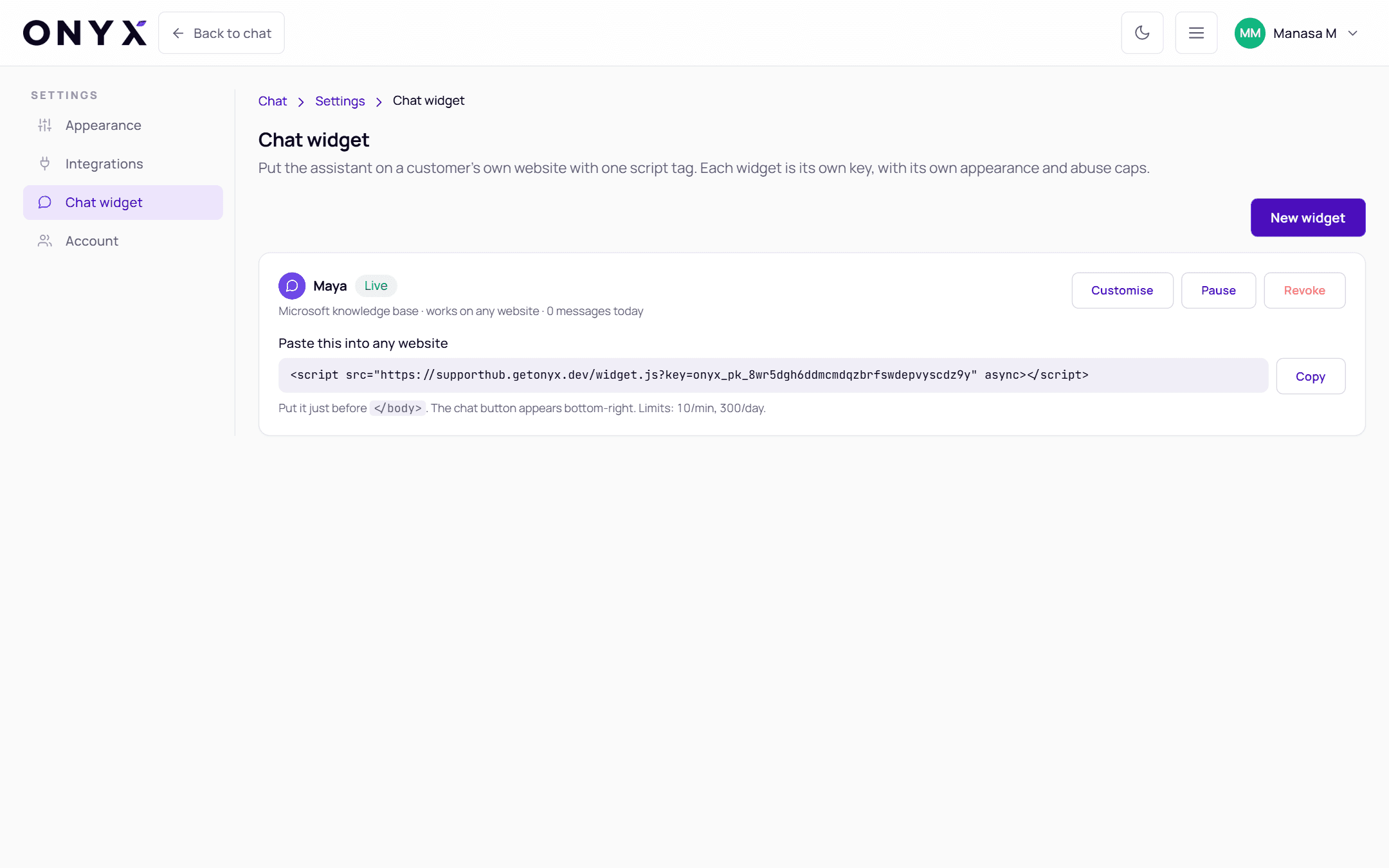
<script src="https://supporthub.getonyx.dev/widget.js?key=onyx_pk_…" async></script>The onyx_pk_… key identifies your widget. It's designed to be public — it's safe to put in
your page's HTML.
Add it to your site
Paste the snippet into your website's HTML — put it just before </body>. The chat button
appears bottom-right on every page that includes it.
If your site uses a builder (WordPress, Webflow, Wix…), paste it into the "custom code" or "footer scripts" setting.
Try it
Open your site, click the launcher, and ask a question.
Where it works
A new widget works on any website. The card shows where it's allowed to run — "works on any website" or "only on: …". To restrict a widget to your own domains, contact the Onyx team.