
Feedback & flags
Rate answers, and ask an Onyx specialist to check one when it matters.
Every answer has three feedback buttons.
👍 Helpful and 👎 Not helpful
Click Helpful or Not helpful to rate the answer. Click the same button again to undo.
- A 👍 tells the team the answer landed. It also settles any review already open on that answer.
- A 👎 tells the team it didn't — and puts the answer in front of them to look at.
You don't have to explain a rating. If you want a specialist to actually come back to you, use a flag instead.
🚩 Flag for a specialist
A flag asks an Onyx licensing specialist to review the answer and reply to you.
Click the flag
Under the answer, click 🚩 Flag for a specialist. A panel opens asking "Send this to our QA team to review?"
Say what's wrong (recommended)
Under What's wrong with it? — optional, but it helps a lot — say what you need confirmed, or what looks wrong. For example:
this is right for EA but not for CSP, or the SKU was retired in July
Up to 1,000 characters.
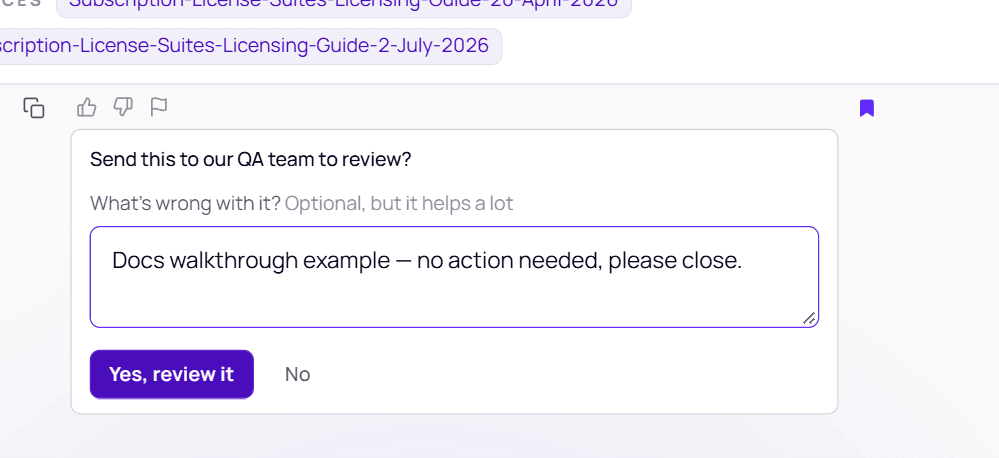
Send it
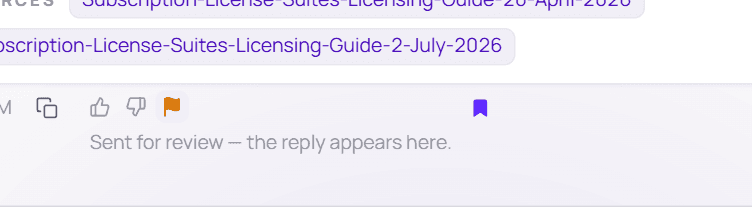
Choose Yes, review it (or No to cancel). The flag turns orange and you'll see "Sent for review — the reply appears here."
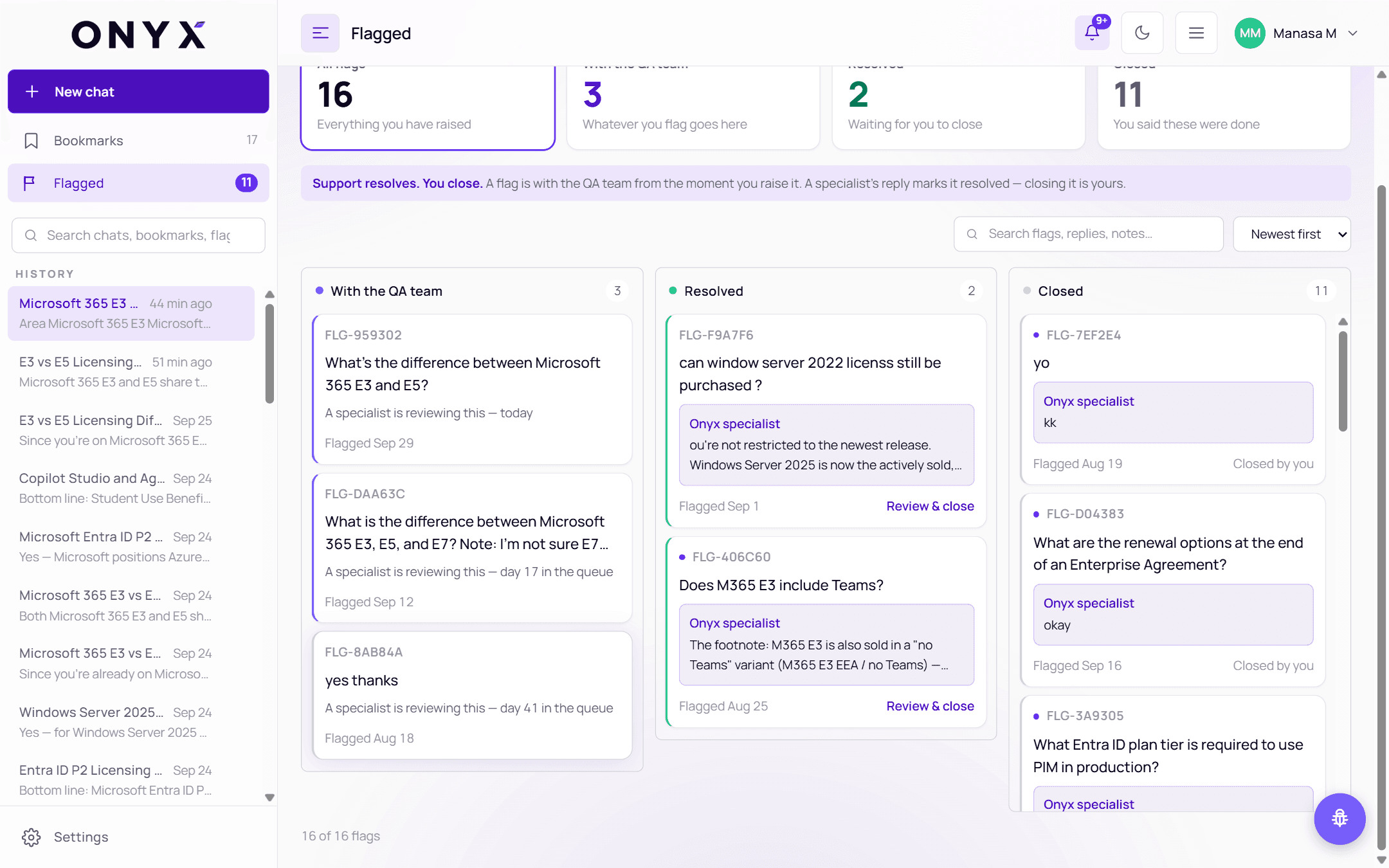
Track it in Flagged
Open Flagged in the sidebar. Your question is under With the QA team — "A specialist is reviewing this — today".
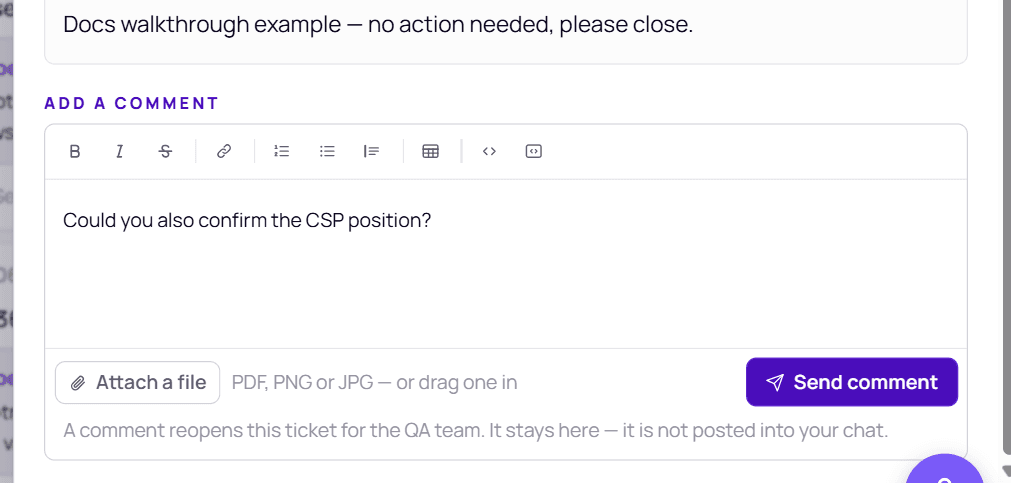
Add more detail any time
Click the ticket to open it, then write in Add a comment and choose Send comment. You can format text and Attach a file (PDF, PNG or JPG). A comment reopens this ticket for the QA team. It stays here — it is not posted into your chat.
What happens next
- Your question goes into the specialists' queue, with your name and note.
- Flagged questions are worked first.
- You can follow it — and add comments — in the Flagged panel.
- When a specialist replies, you're told three ways: in the conversation, in 🔔 notifications, and by email. See Specialist replies.
When to flag
Flag anything you're about to rely on for money or compliance — a renewal, a customer proposal, an audit response — and anything that looks wrong or out of date. A good note makes the review faster.