
Flagged questions
Track every question you've sent to a specialist — read replies, add comments, and close tickets when you're satisfied.
Flagged in the sidebar lists the tickets you raised.
Support resolves them — you close them when you are satisfied.
The Flagged page
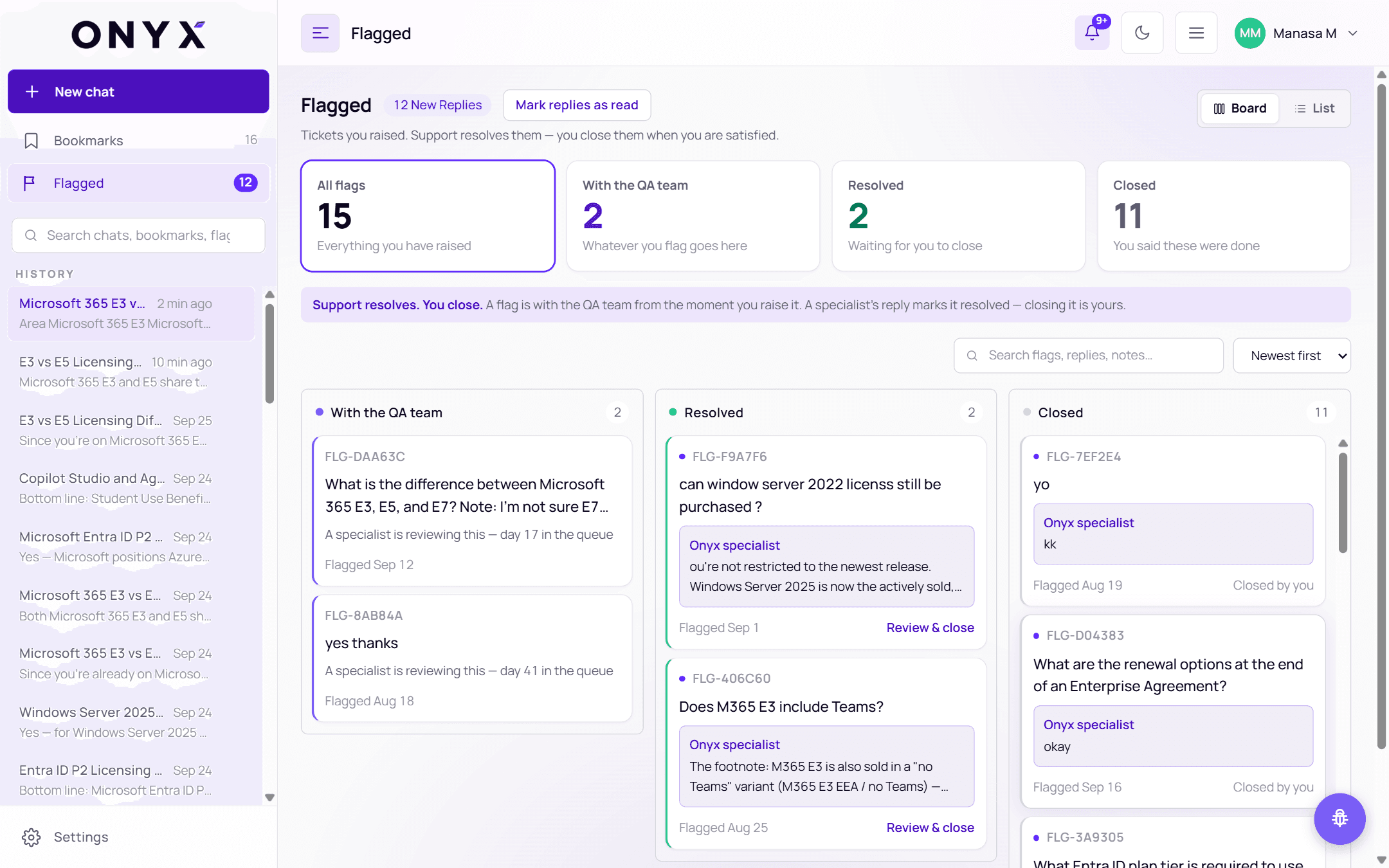
Along the top, four tiles count your tickets:
| Tile | Meaning |
|---|---|
| All flags | Everything you have raised |
| With the QA team | Whatever you flag goes here — a specialist is working on it |
| Resolved | A specialist has replied — waiting for you to close |
| Closed | You said these were done |
Click a tile to filter the list. New Replies shows how many replies you haven't read yet; Mark replies as read clears them.
Support resolves. You close. A flag is with the QA team from the moment you raise it. A specialist's reply marks it resolved — closing it is yours.
A ticket that was looked at and closed without a written reply is marked Reviewed.
Board and List
Each ticket is a card with its reference (FLG-…), your question and where it stands:
- With the QA team cards say how long it's been waiting — "A specialist is reviewing this — day 17 in the queue".
- Resolved cards show the start of the Onyx specialist's reply and a Review & close link.
- Closed cards show Closed by you.
Switch to List (top right) for a compact table — Ticket · The flag · Status · When — instead of the Board.
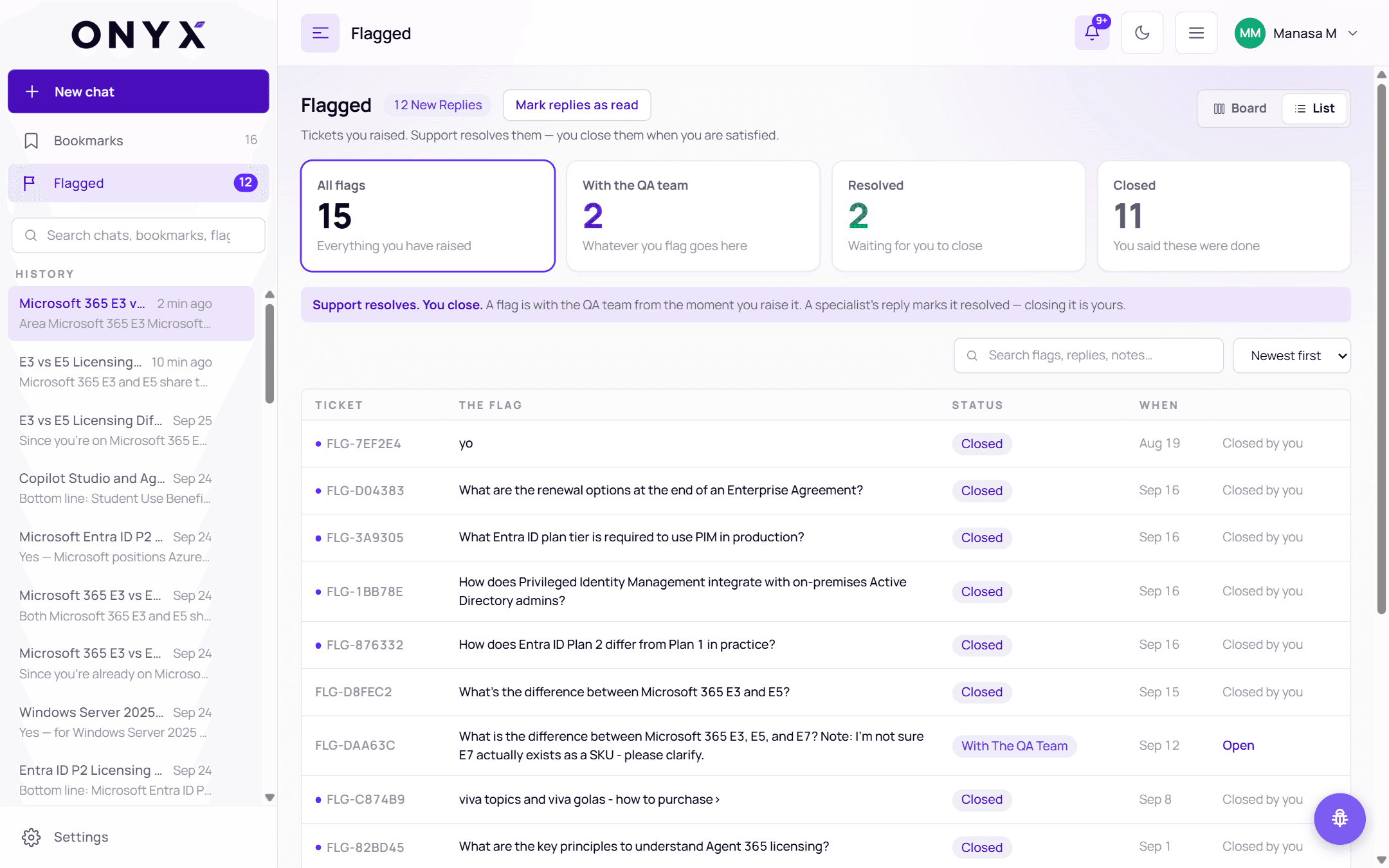
Finding a ticket
- Search flags, replies, notes… searches questions, replies and your notes.
- Sort by Newest first or Oldest first.
- Clear the filters to see everything again.
Opening a ticket
Click a card — or Review & close — to open the ticket.
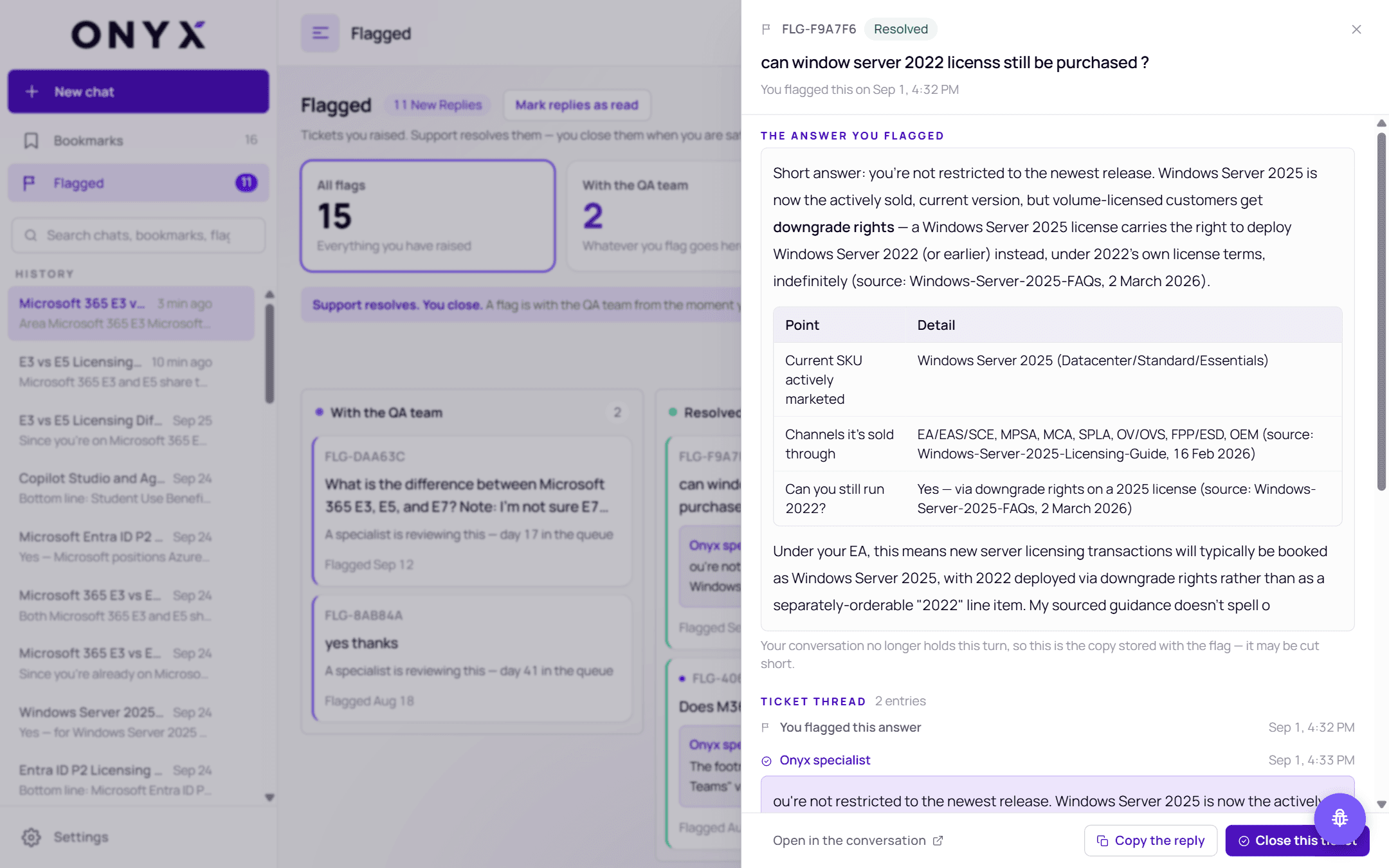
You'll see:
- the ticket reference and status, your question, and when you flagged it
- The answer you flagged — the full text
- Ticket thread — every step, labelled: You flagged this answer, Onyx specialist, You asked a follow-up, Reviewed by the QA team, Reopened — waiting on the QA team
- Open in the conversation — jump to the exact turn you flagged
- Copy the reply — copy the specialist's answer
If you've deleted the conversation, the ticket still keeps a copy of the answer you flagged.
Adding a comment
Use Add a comment — "Ask a follow-up, or tell the specialist what is still unclear…" — then Send comment. You can format the text and Attach a file (PDF, PNG or JPG — or drag one in). A comment reopens this ticket for the QA team. It stays here — it is not posted into your chat.
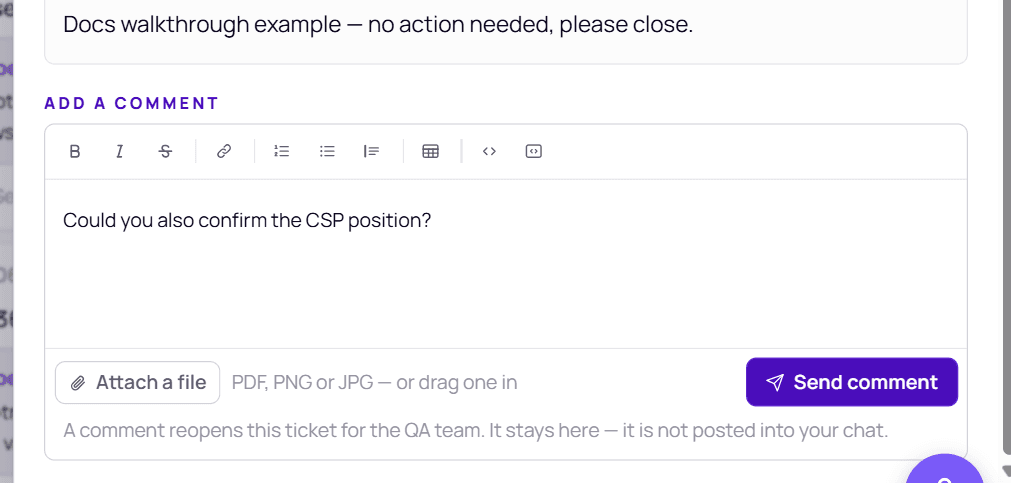
Closing and reopening
- Close this ticket (bottom right of the ticket) once a specialist has replied and you're satisfied. ("You can close this once a specialist has replied.") A 👍 This helped on the reply in the conversation does the same.
- To ask for another look after closing, reopen the ticket and add a comment below.
Closed tickets show Closed by you.