
Your first question
A five-minute walkthrough — ask, read the sources, follow up, save the answer and, if it matters, have a specialist check it.
This walks through one question from start to finish, touching every part of SupportHub you'll use day to day.
Sign in
Open supporthub.getonyx.dev and sign in with your Onyx account. See Signing in if you have trouble.
Ask a question
Click Try one of these → What's the difference between Microsoft 365 E3 and E5?, or type your own question into "Ask Maya about Microsoft licensing…" and press Enter.
Be specific where it matters — name the product, version and agreement type if you know them. "Do we need CALs for Windows Server 2025 on an EA?" gets a sharper answer than "Do we need CALs?".
Watch Maya work
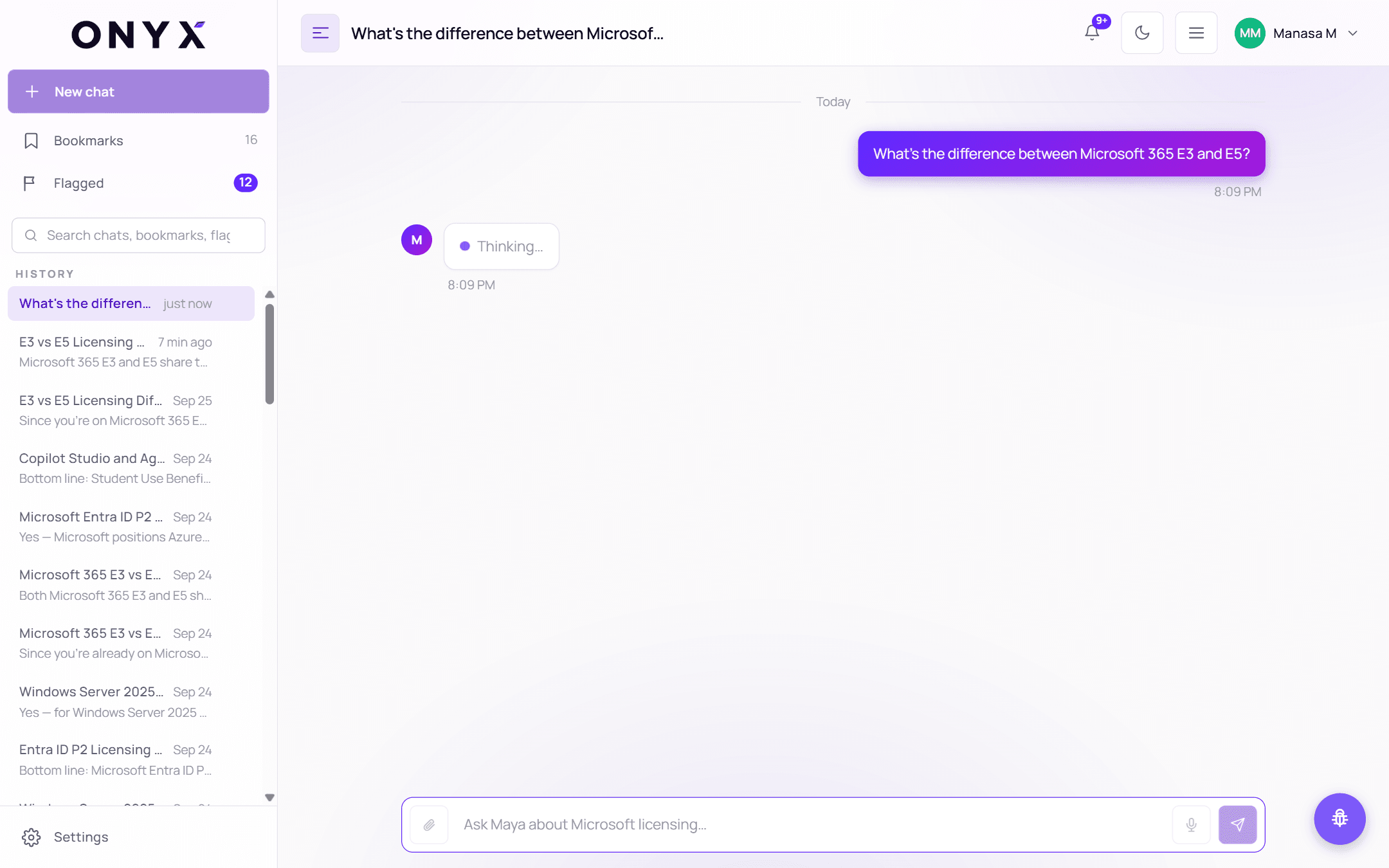
While Maya researches you'll see what she's doing — "Reading your question…", "Checking Microsoft's licensing terms…". For questions with several parts she splits them up and tells you: "Thinking through 3 parts…". The answer then streams in.
Read the answer and its sources
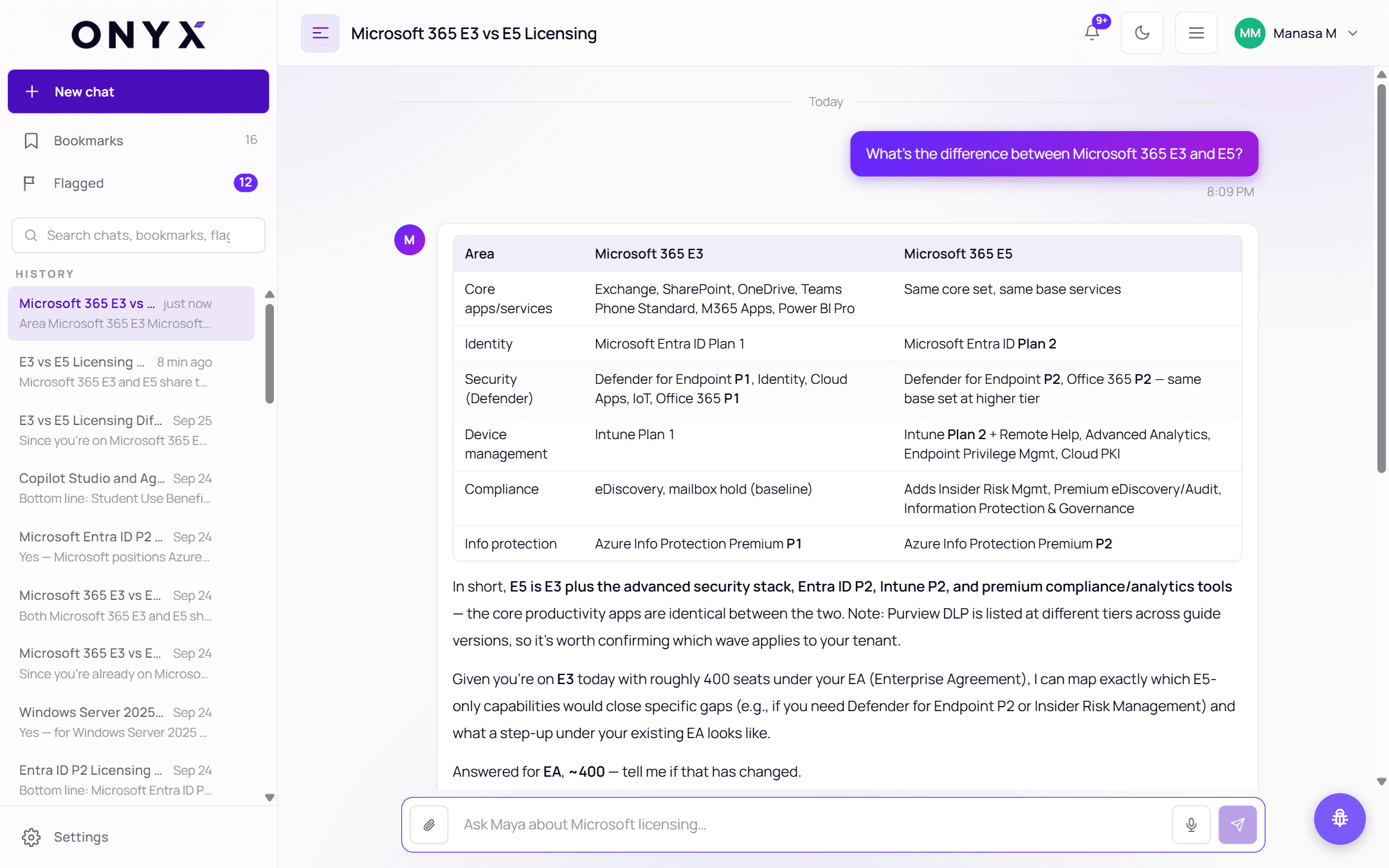
Under the answer is a Sources list — the documents Maya relied on. Tables and diagrams are used where they make comparisons clearer. See Reading an answer.
Follow up
Under the newest answer, Ask next suggests follow-up questions. Click one, or ask your own — Maya remembers the conversation, so "and what about E5 Security?" works. You can also ask her to reshape the answer: "put that in a table", "shorter", "in Dutch".
Rate it
Use 👍 Helpful or 👎 Not helpful under the answer. Your rating helps the Onyx team see what's working. A 👎 also puts the answer in front of the team.
Save it
Click the bookmark icon to keep the answer. Add a note — "What's this one for?" — so you can find it later. Bookmarks survive even if you delete the conversation. See Bookmarks.
Have a specialist check it
If the answer matters — a renewal, a customer quote, an audit — click the 🚩 Flag for a specialist icon, add a note about what you need confirmed, and choose Send to the QA team.
An Onyx specialist reviews it. Their reply appears in this conversation as a Reviewed by an Onyx specialist card, in your 🔔 notifications, and in your email. See Flagging an answer and Specialist replies.