
A tour of the screen
Where everything is in SupportHub — the sidebar, the conversation, the composer and the header.
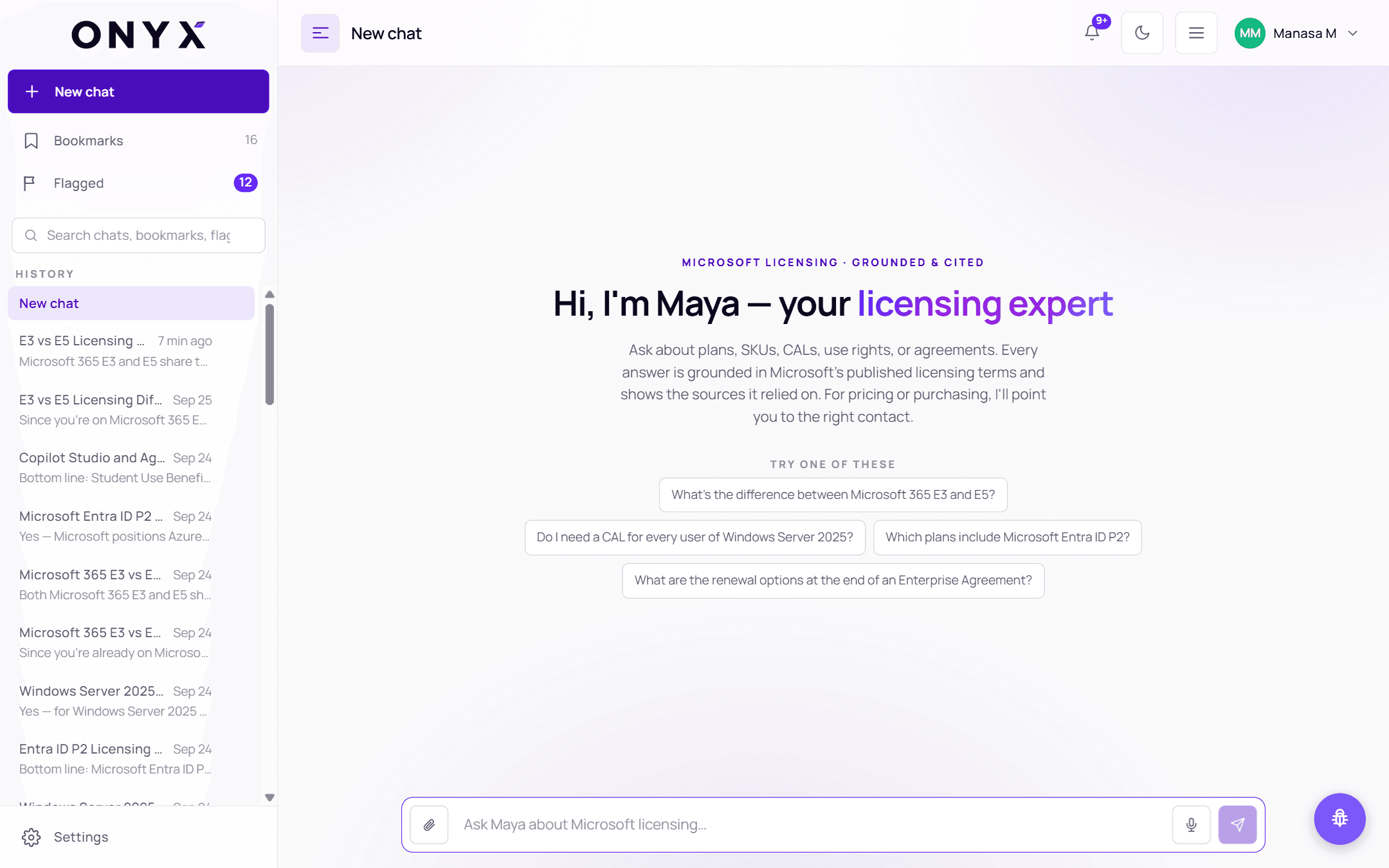
SupportHub has three areas: the sidebar on the left, the conversation in the middle, and the header along the top.
The sidebar
| Item | What it does |
|---|---|
| New chat | Starts a fresh conversation |
| Bookmarks | Answers you've saved, with a count — see Bookmarks |
| Flagged | Questions you've sent to a specialist; the badge counts unread replies — see Flagged questions |
| Search | Searches your chats, bookmarks and flags — see History & search |
| History | Your past chats, newest first, each with its title, a preview and when it was last active. Hover one to delete it. |
| Settings | Appearance, integrations and your account |
On a laptop you can keep the conversation list open with Keep conversations open (the pin at the top of the sidebar), or unpin it to give the conversation more room. On a phone, the sidebar opens from the menu button.
The conversation
When a chat is empty you see Maya's welcome and four Try one of these questions — click one to ask it. Once you start, your questions appear on the right and Maya's answers on the left, with a date divider at the start of each day.
Under each answer you'll find its sources, the time, and buttons to copy, rate, flag or bookmark it. See Reading an answer.
The composer
The box at the bottom — "Ask Maya about Microsoft licensing…" — is where you type.
| Control | Use |
|---|---|
| 📎 Attach a file | Add a PDF, image, spreadsheet or document to your question |
| 🎤 Dictate a question | Speak instead of typing |
| ➤ Send | Send your question (or press Enter) |
See Asking a question.
The header
| Control | Use |
|---|---|
| 🔔 Notifications | Replies from Onyx specialists — see Specialist replies |
| ☀ Switch theme | Light or dark |
| ▤ Display density | Compact, Default or Comfortable spacing |
| Account menu | Settings, My profile, Organization and Sign out |
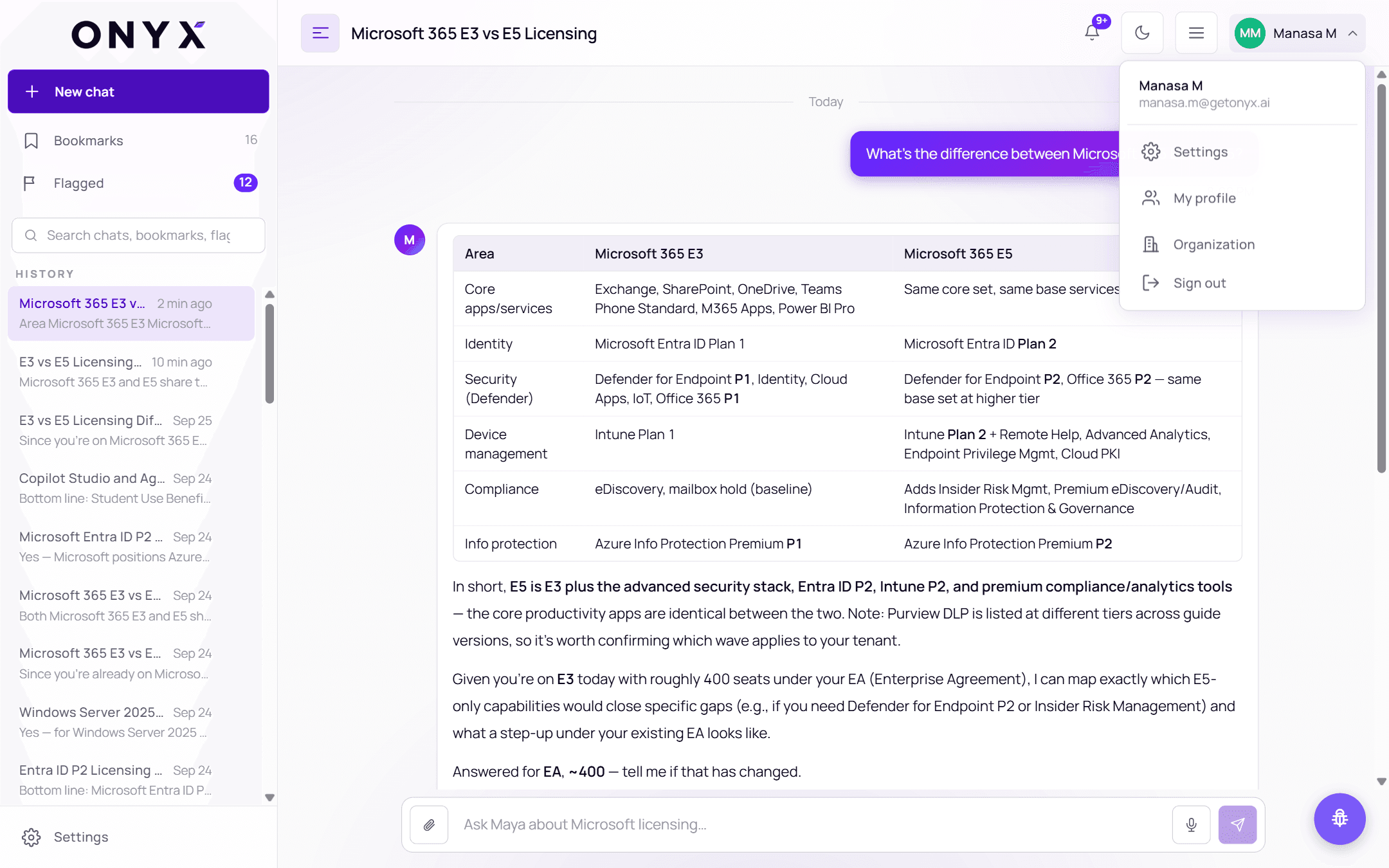
My profile and Organization open Onyx Platform, where your profile and organisation are managed.
Report an issue
The round button in the bottom-right corner is Report an issue. Use it to tell the Onyx team about a problem with SupportHub itself — something broken or confusing on screen. You can drag it out of the way. (To question an answer, use 🚩 Flag for a specialist instead.)