
Settings
Your profile and photo, your organisation, appearance, and regional preferences.
Open Settings from the bottom of the sidebar, or Profile in the account menu. The Settings menu on the left has four sections:
| Section | For |
|---|---|
| General Settings | Your profile and preferences — everyone |
| Integrations | Microsoft Partner Center — see Integrations |
| Org Management | Your organisation and its child organisations — see Organization |
| User Management | People and access — see Team |
General Settings
Manage organization identity and your platform preferences.
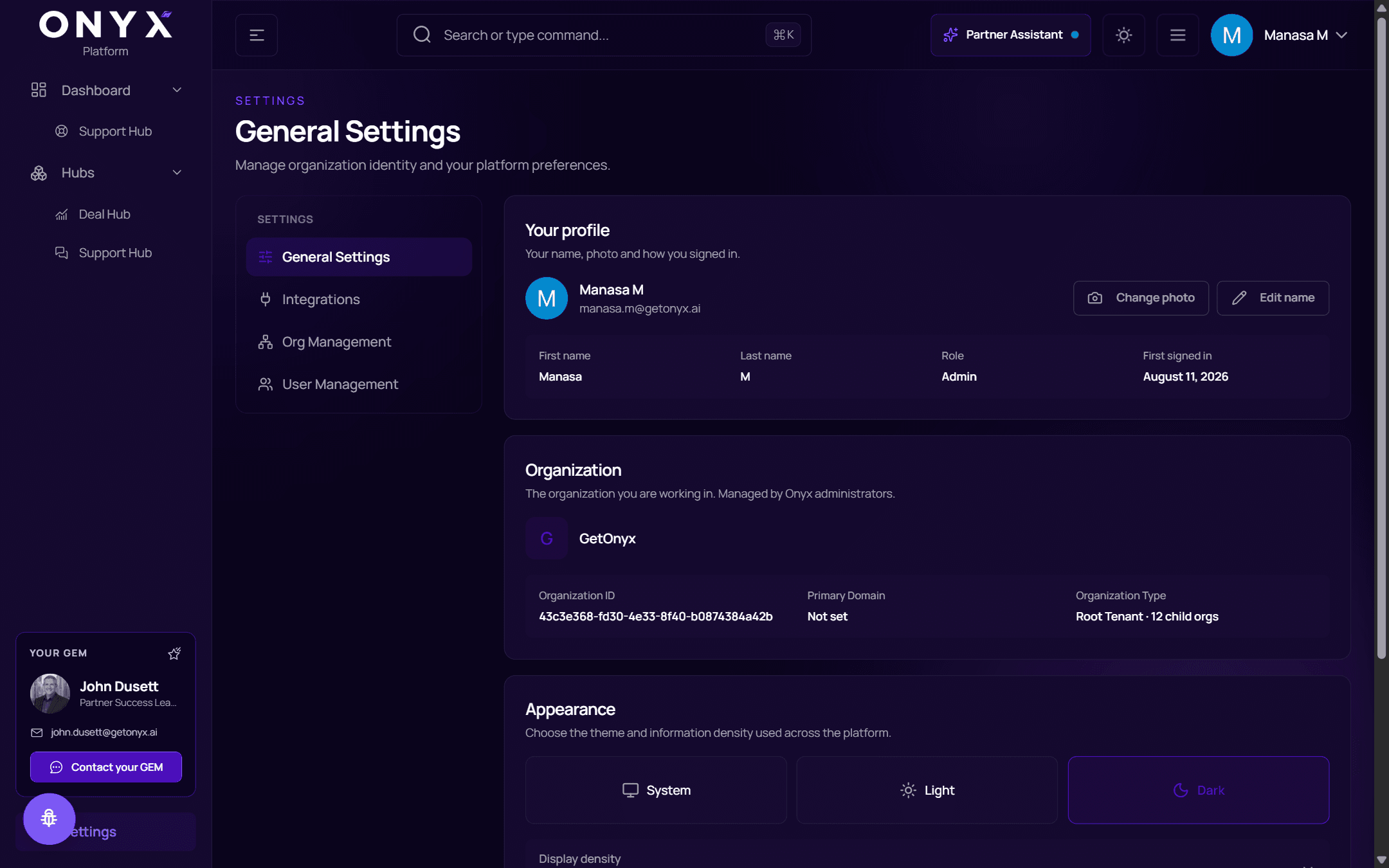
Your profile
Your name, photo and how you signed in — your first and last name, role, and when you first signed in.
- Change photo — choose an image (up to 10 MB). You'll see Photo updated.
- Edit name — change your first and last name. You'll see Profile updated.
Your profile is shared by every Onyx product.
Organization
The organization you are working in. Managed by Onyx administrators. Shows its name, Organization ID, Primary Domain and Organization Type.
Appearance
Choose the theme and information density used across the platform.
- Theme — System, Light or Dark
- Display density — Default, Comfortable or Compact
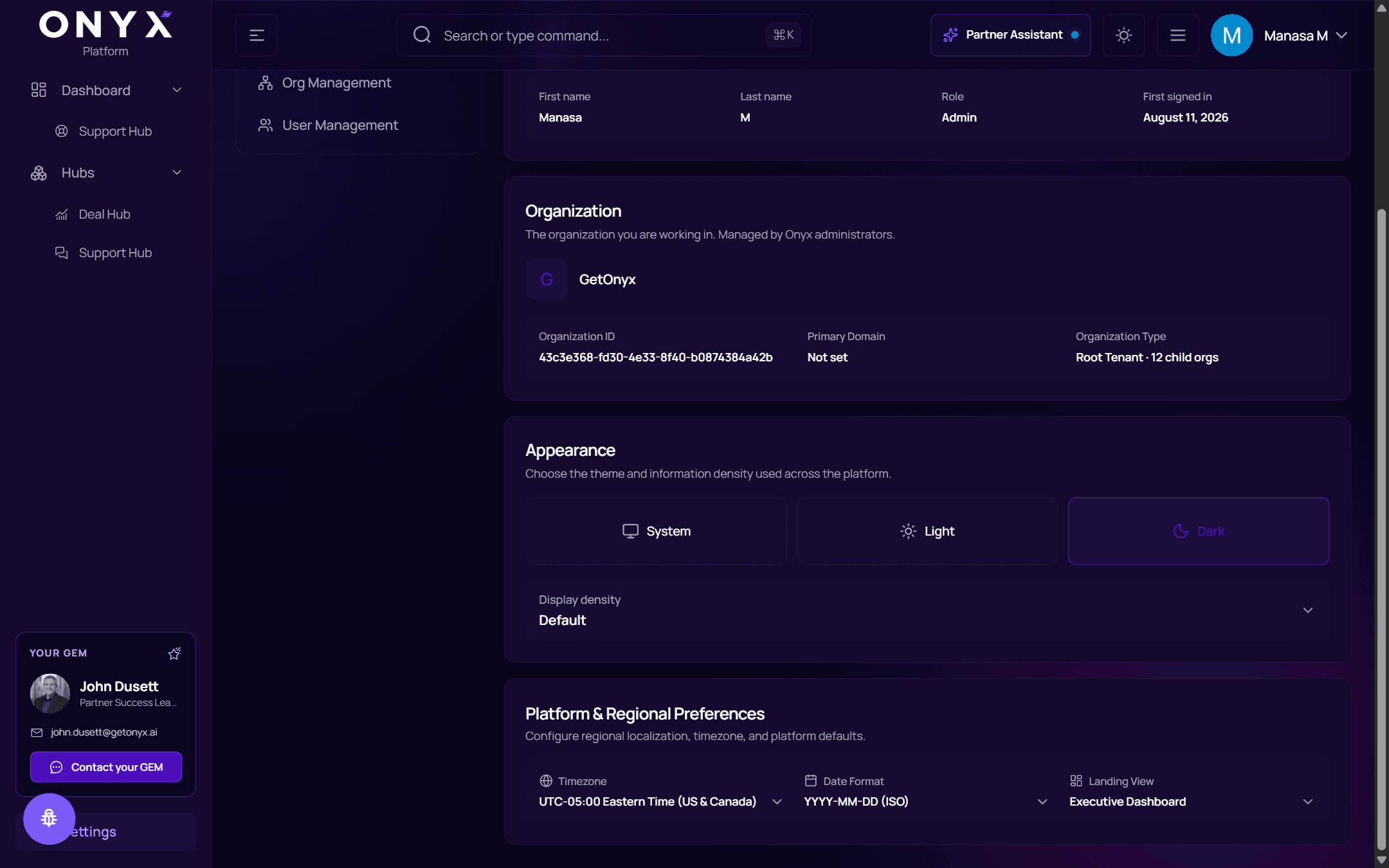
Platform & Regional Preferences
Configure regional localization, timezone, and platform defaults.
| Setting | Options |
|---|---|
| Timezone | For example UTC+05:30 India Standard Time or UTC+00:00 London (GMT/BST) |
| Date Format | YYYY-MM-DD (ISO), MM/DD/YYYY (US) or DD/MM/YYYY (UK / EU) |
| Landing View | Where you land after signing in — Executive Dashboard, Hubs Workspace or Support Hub |
Changes save straight away — Preferences saved.