
Signing in
Accept your invitation, sign in with Google, Microsoft or email, and reset your password.
Accept your invitation
Onyx access is invitation-only. When your administrator invites you, you get an email.
Open the invitation
Click the link in the email. The page shows You've been invited, with the Organization, its Type and your Role — Organization Member or Organization Administrator.
Create your account or sign in
Choose Continue to sign up to create your account, or Continue to sign in if you already have one. Use the email address the invitation was sent to.
Accept
Choose Accept invitation. You'll see Invitation accepted — your account is ready — and you can sign in.
| If you see | It means |
|---|---|
| Invitation expired | Ask your administrator to resend it |
| Invitation revoked | Ask your administrator for a new invitation |
| Already accepted | You're already in — just sign in |
| Wrong account signed in | Choose Sign out, then accept with the invited account |
Sign in
Go to platform.getonyx.dev.
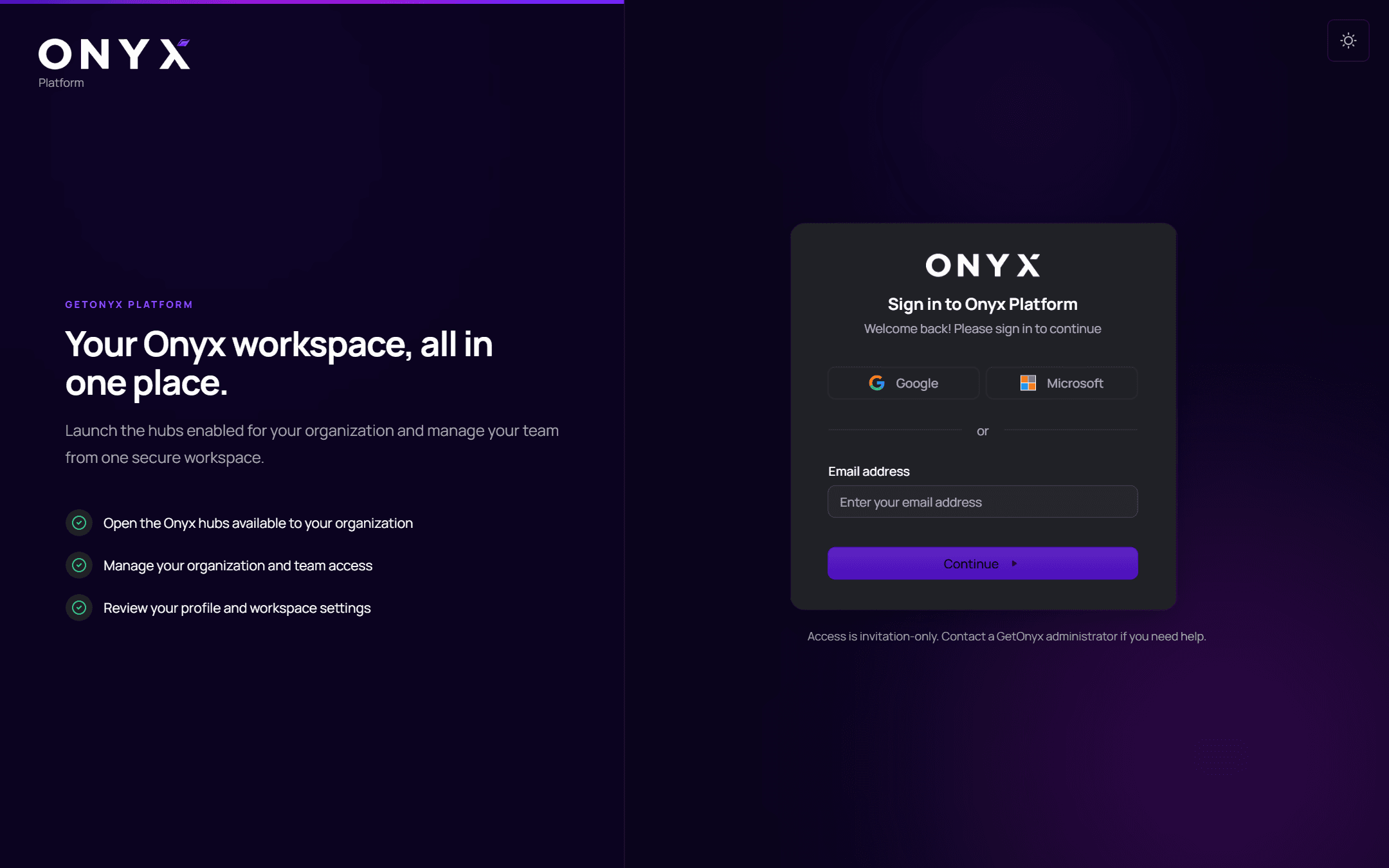
Choose Google or Microsoft, or enter your Email address and choose Continue. If you arrived from another Onyx product, you're sent straight back to it once you're signed in.
Reset your password
On the sign-in page, choose to reset your password, or go to platform.getonyx.dev/reset-password.
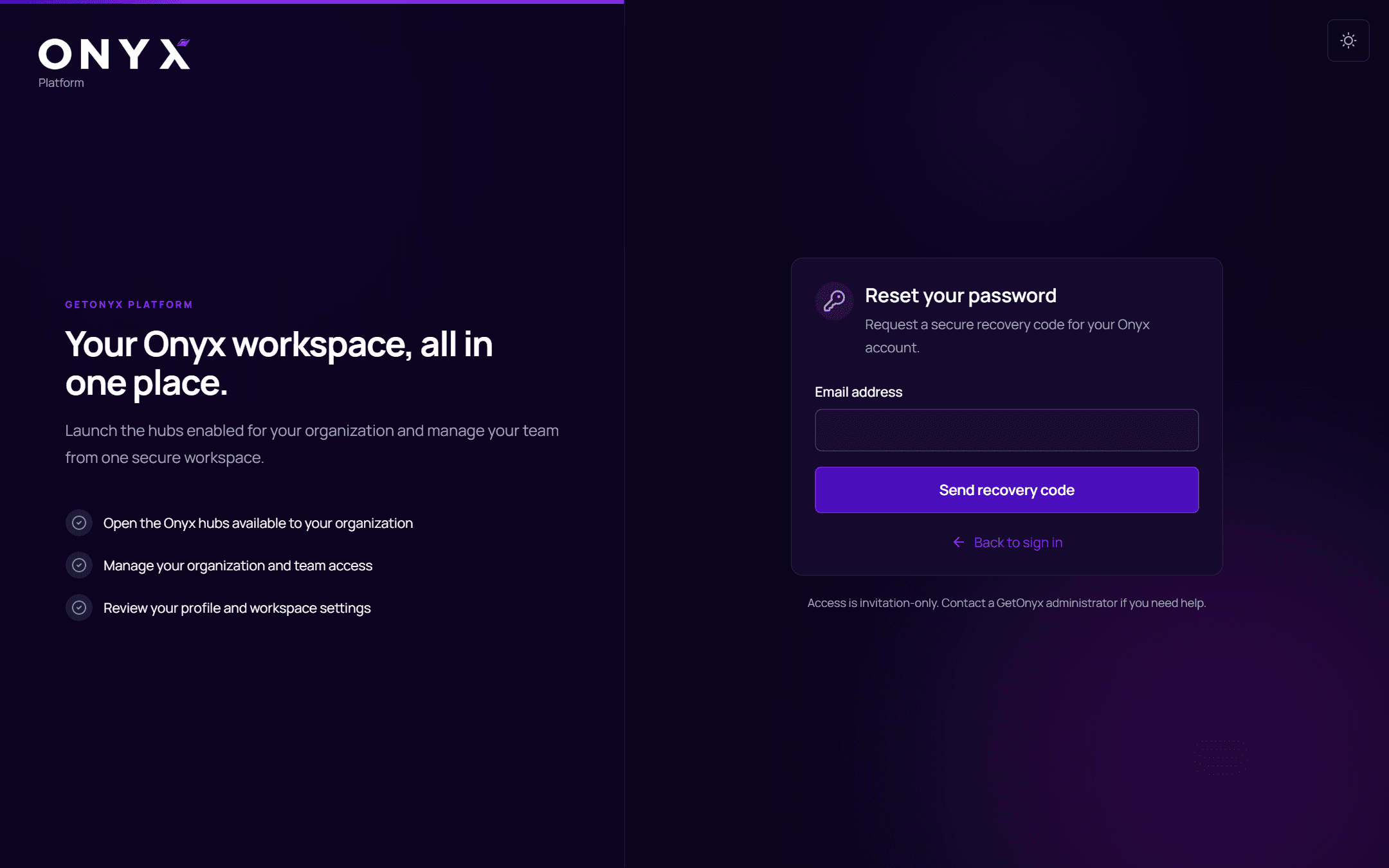
Enter your Email address to request a secure recovery code.
Enter the Recovery code from your email.
Choose a New password, type it again in Confirm password, and choose Continue to Onyx.
You'll see Password updated — your new password is ready to use. If you signed up with Google or Microsoft, there's no Onyx password to reset: Password recovery is not available for this account.
Signing out
Open the account menu (your name, top right) and choose Sign out. This signs you out of every Onyx product in this browser.