
A tour of the screen
The sidebar, search, Partner Assistant, theme and density, the account menu and your GEM.
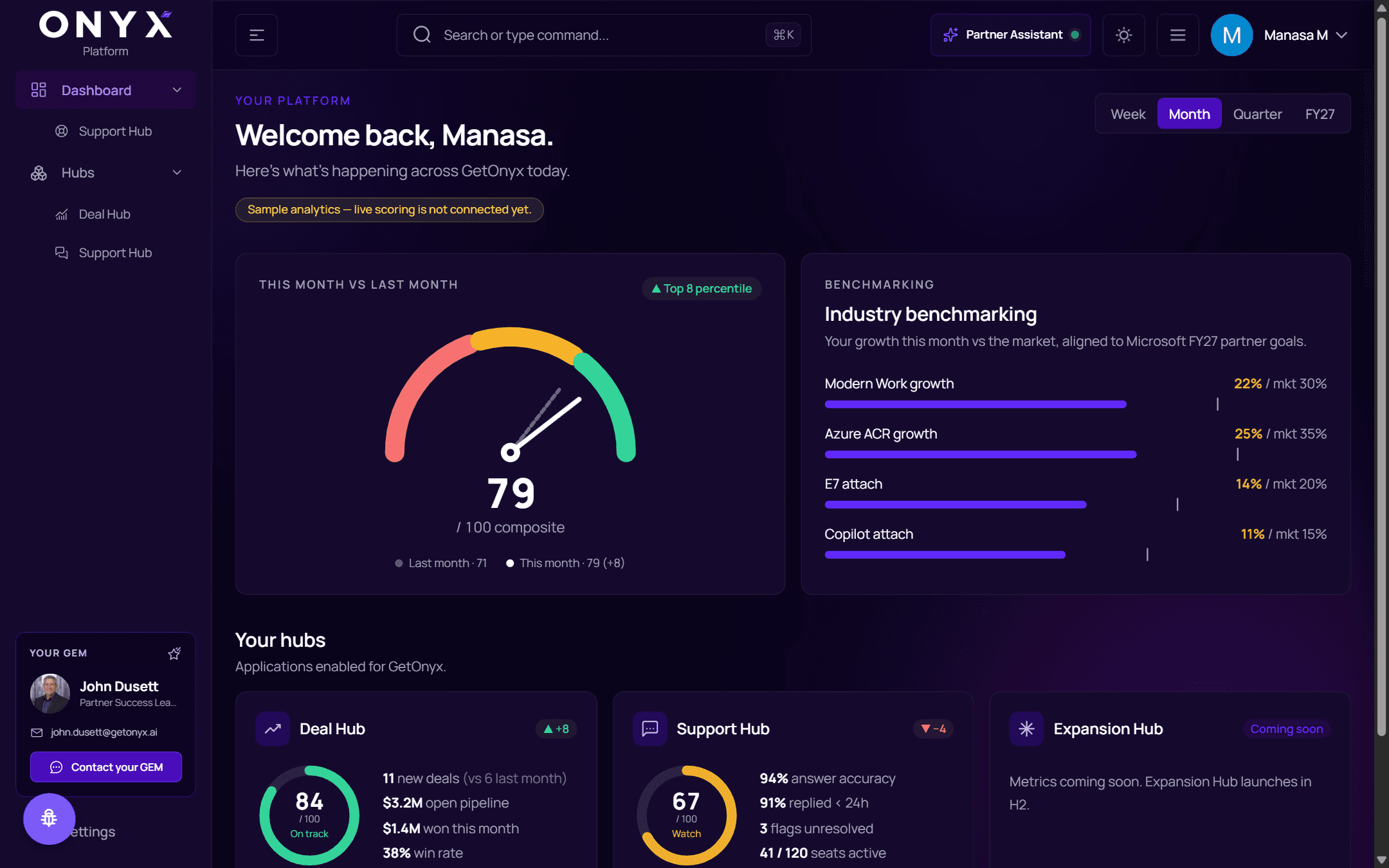
The sidebar
| Item | Opens |
|---|---|
| Dashboard | Your platform overview — see Dashboard |
| ↳ Support Hub | Support Hub usage across your organisation (admins) — see Support Hub usage |
| Hubs | Every hub enabled for your organisation — see Hubs |
| ↳ Deal Hub, Support Hub | Open that hub directly |
| Settings | Your profile and preferences — see Settings |
The button at the top left collapses the sidebar to icons. Groups you close stay closed next time.
Your GEM
At the bottom of the sidebar, Your GEM is your named Onyx contact — for example your Partner Success Lead — with their email. Choose Contact your GEM to write to them: fill in the Subject and Message and send. Replies go directly to your email.
The header
| Control | Does |
|---|---|
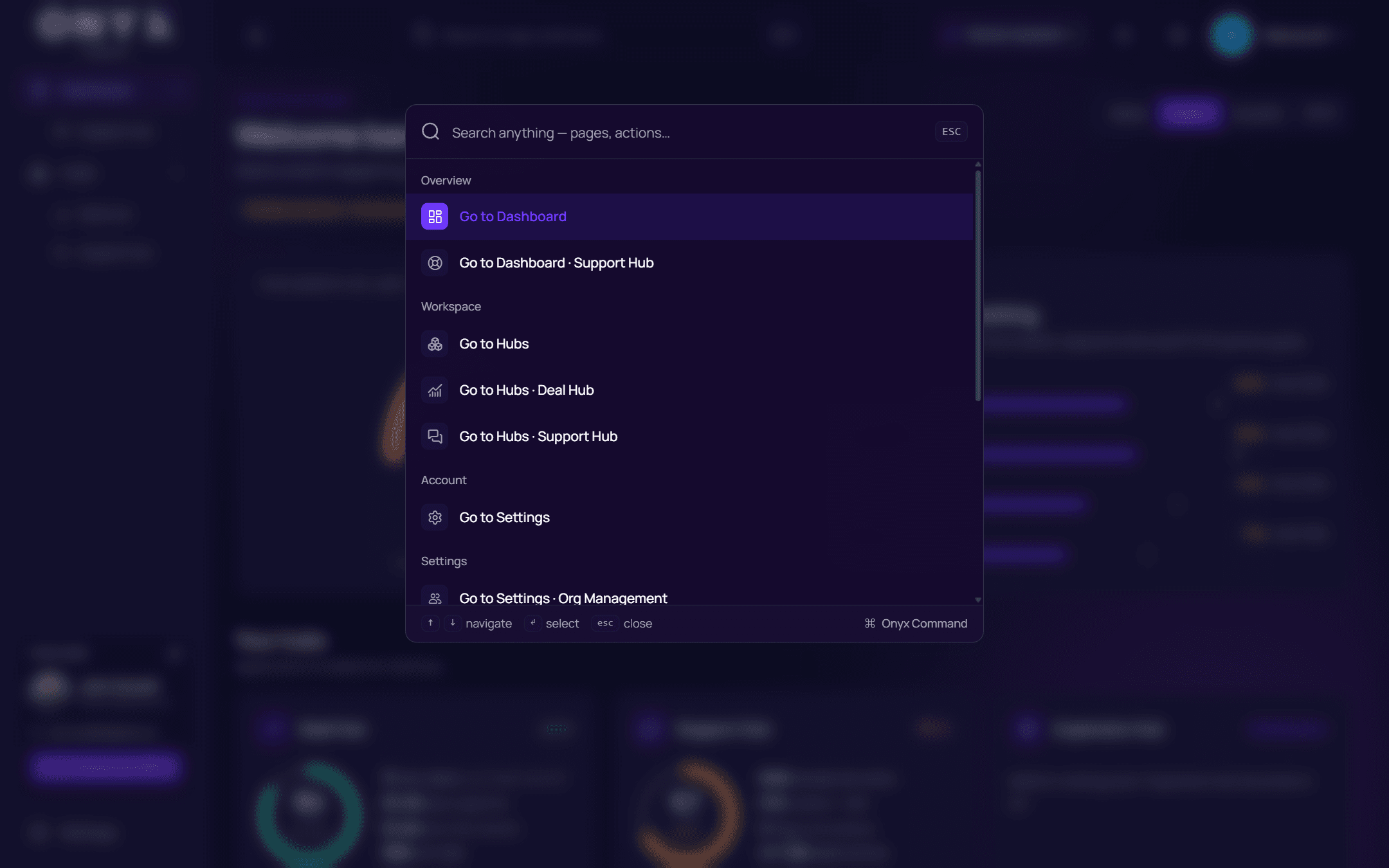
| Search or type command… | Jump to any page — or press ⌘/Ctrl+K |
| Partner Assistant | Opens the AI assistant for your Partner Center data — see Partner Assistant. The dot is green when it's connected. |
| ☀ Theme | Switch between light and dark |
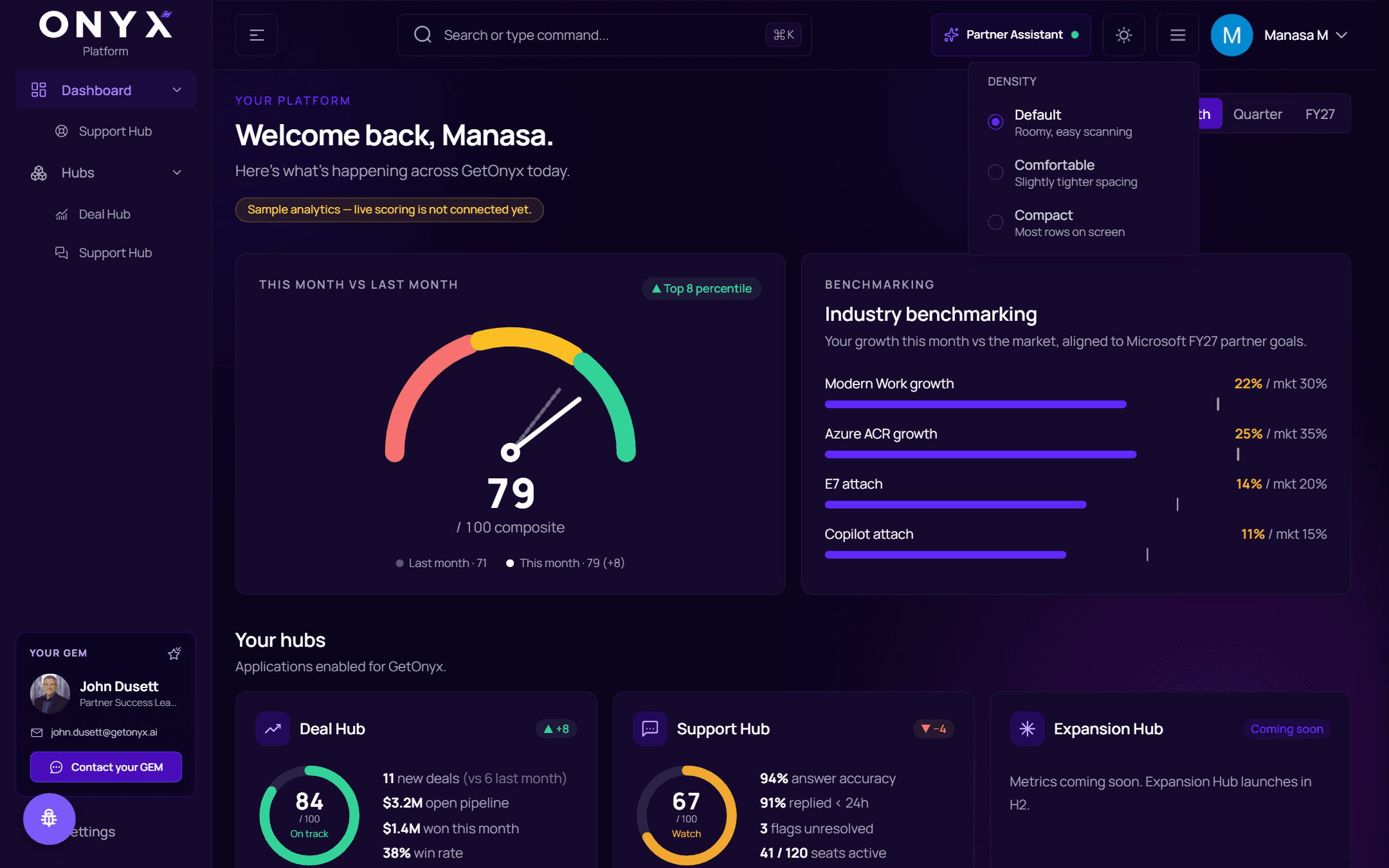
| ▤ Display density | Default, Comfortable or Compact spacing |
| Account menu | Your name — see below |
The account menu
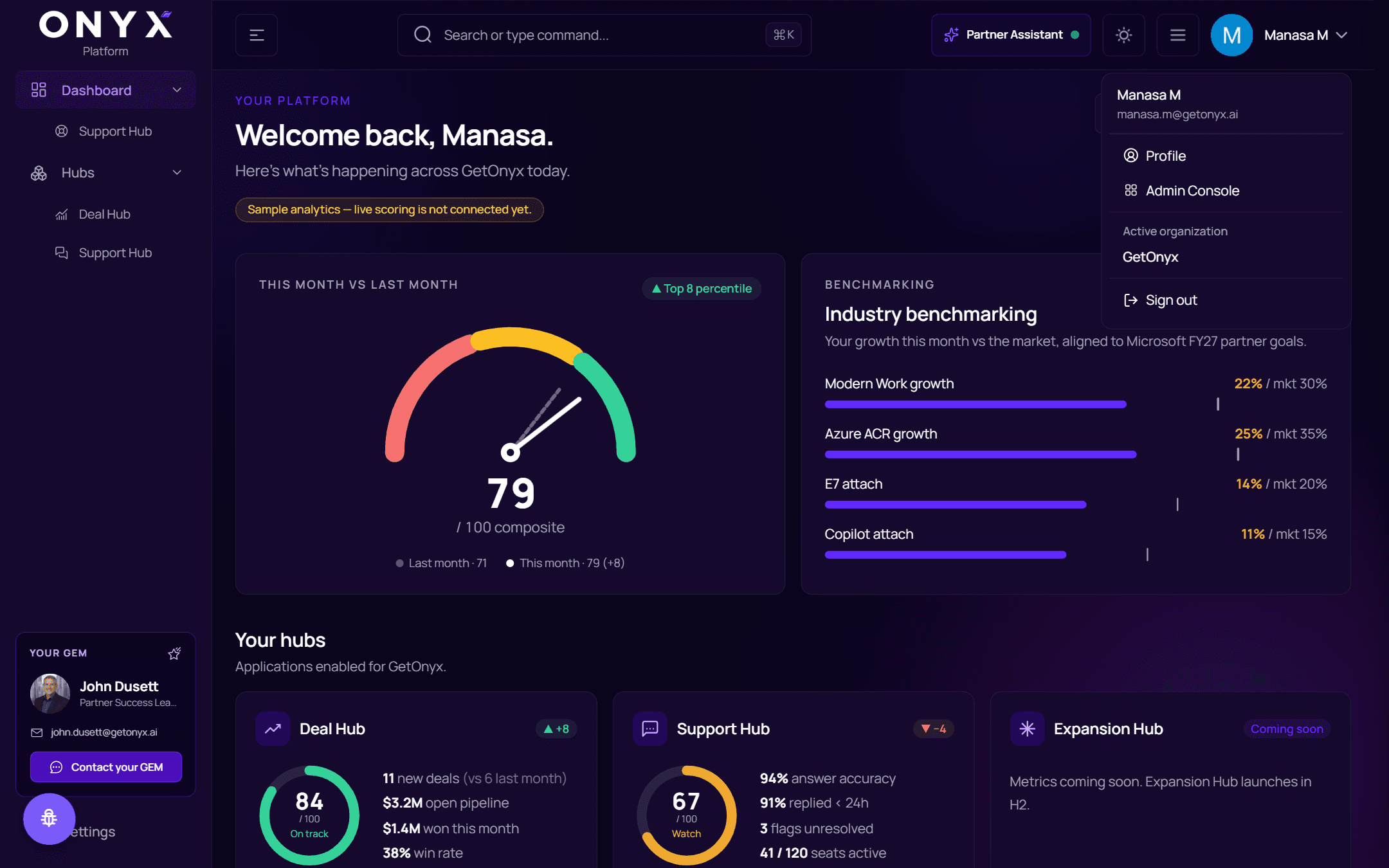
Click your name at the top right.
| Item | |
|---|---|
| Profile | Your profile in Settings |
| Active organization | The organisation you're working in |
| Sign out | Signs you out of every Onyx product in this browser |
Onyx administrators also see a link to the Onyx Admin Console here.
Report an issue
The round button in the bottom-left corner lets you report a problem with Platform to the Onyx team. You can drag it out of the way.