
Team
Invite people, set their role and status, choose which hubs they can open, and handle access requests.
Team (Settings → User Management) is where organisation admins manage people and invitations for their active organization.
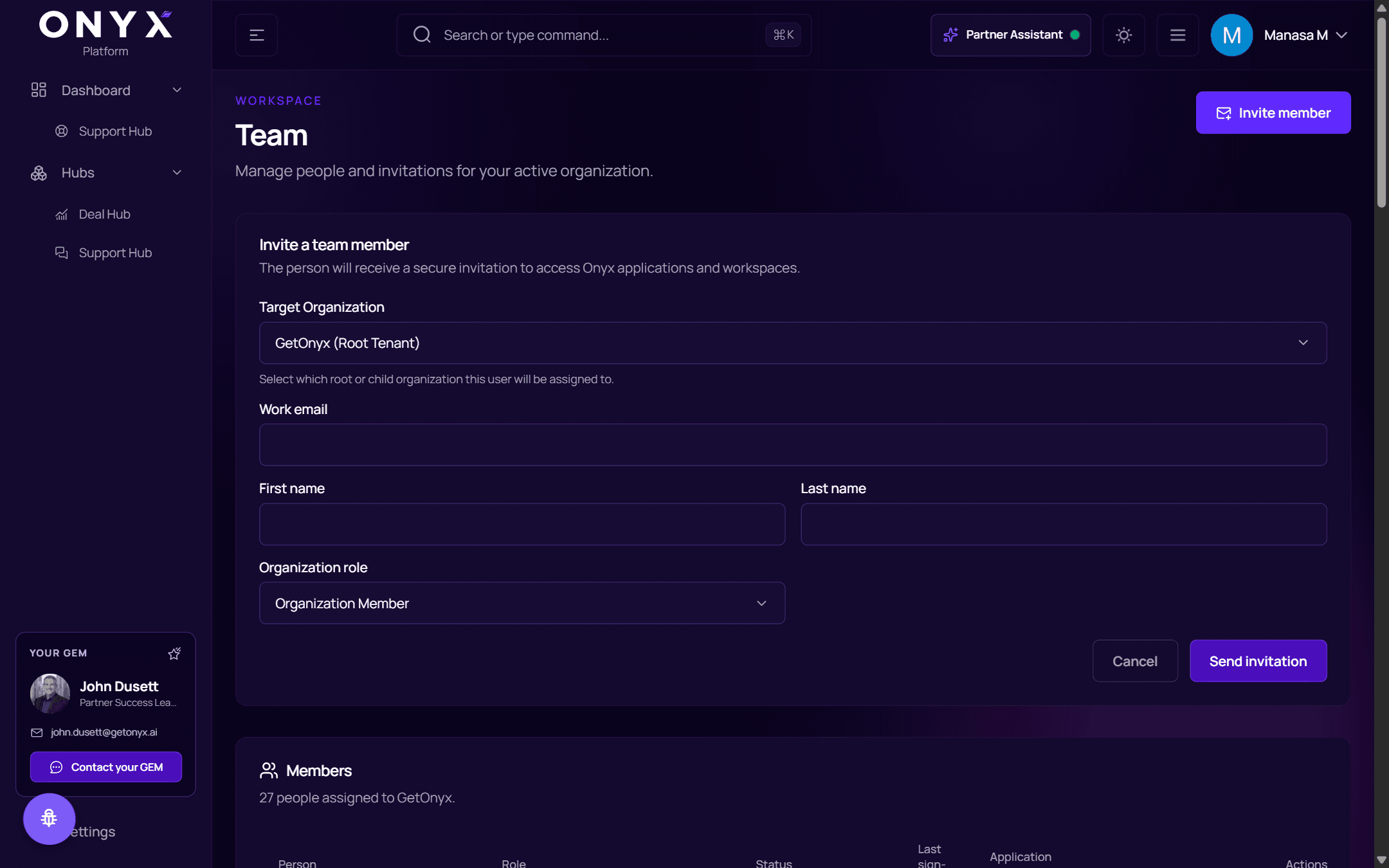
Invite a team member
Open the form
Choose Invite member (top right). The person will receive a secure invitation to access Onyx applications and workspaces.
Fill it in
| Field | |
|---|---|
| Target Organization | Select which root or child organization this user will be assigned to. |
| Work email | The address the invitation goes to |
| First name, Last name | |
| Organization role | Organization Member or Organization Administrator |
Send it
Choose Send invitation. You'll see Invitation sent — the person can now join the organisation. They follow Accept your invitation.
Members
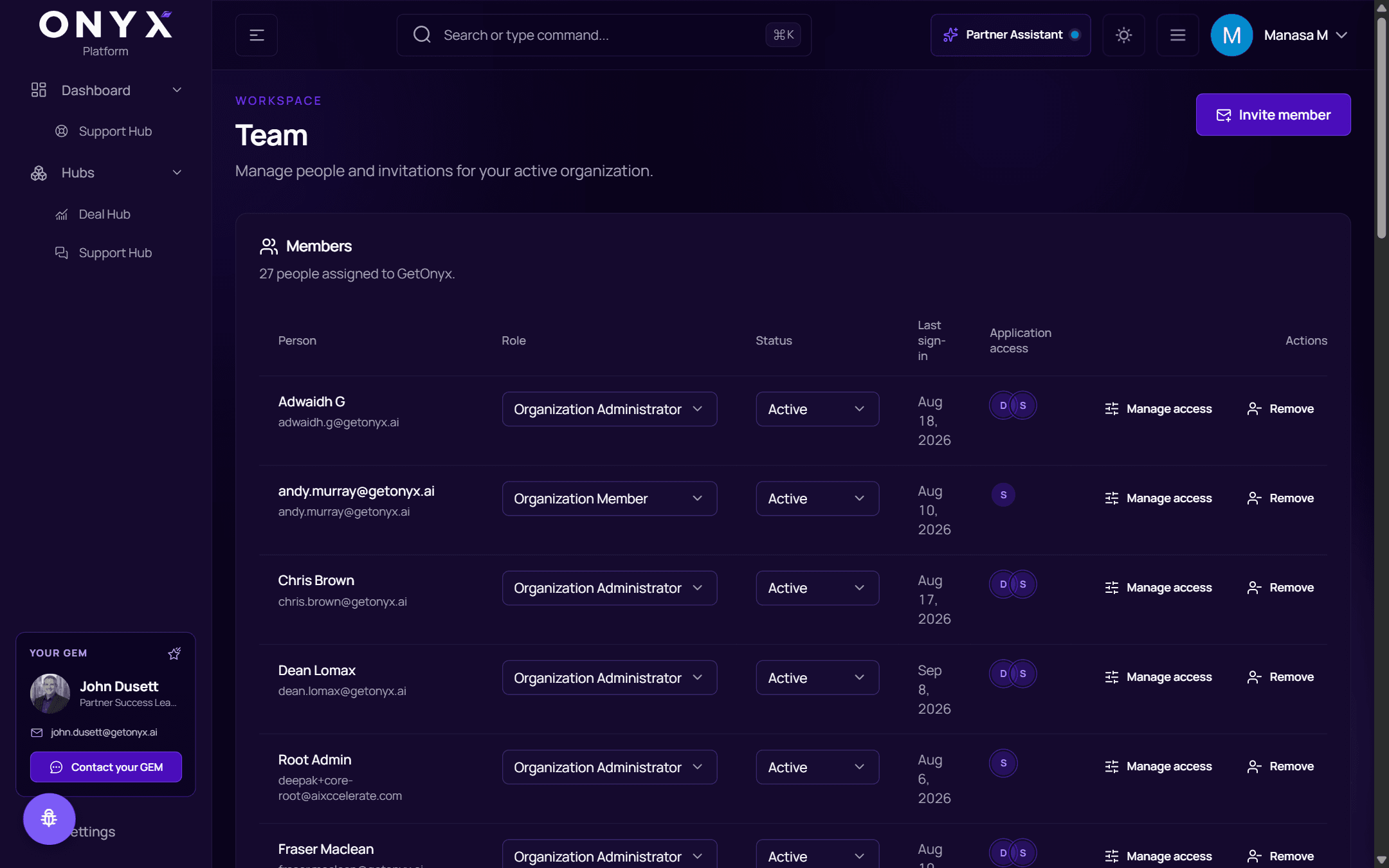
The Members table lists everyone who has accepted an invitation:
| Column | |
|---|---|
| Person | Name and email |
| Role | Change between Organization Member and Organization Administrator |
| Status | Active or Suspended — suspend to block access without removing the person |
| Last sign-in | When they last signed in |
| Application access | Badges for the hubs they can open (D = Deal Hub, S = Support Hub) |
| Actions | Manage access and Remove |
Role and status changes ask you to Confirm change.
Manage someone's hub access
Choose Manage access on their row. Assign or revoke the applications enabled for your organization.
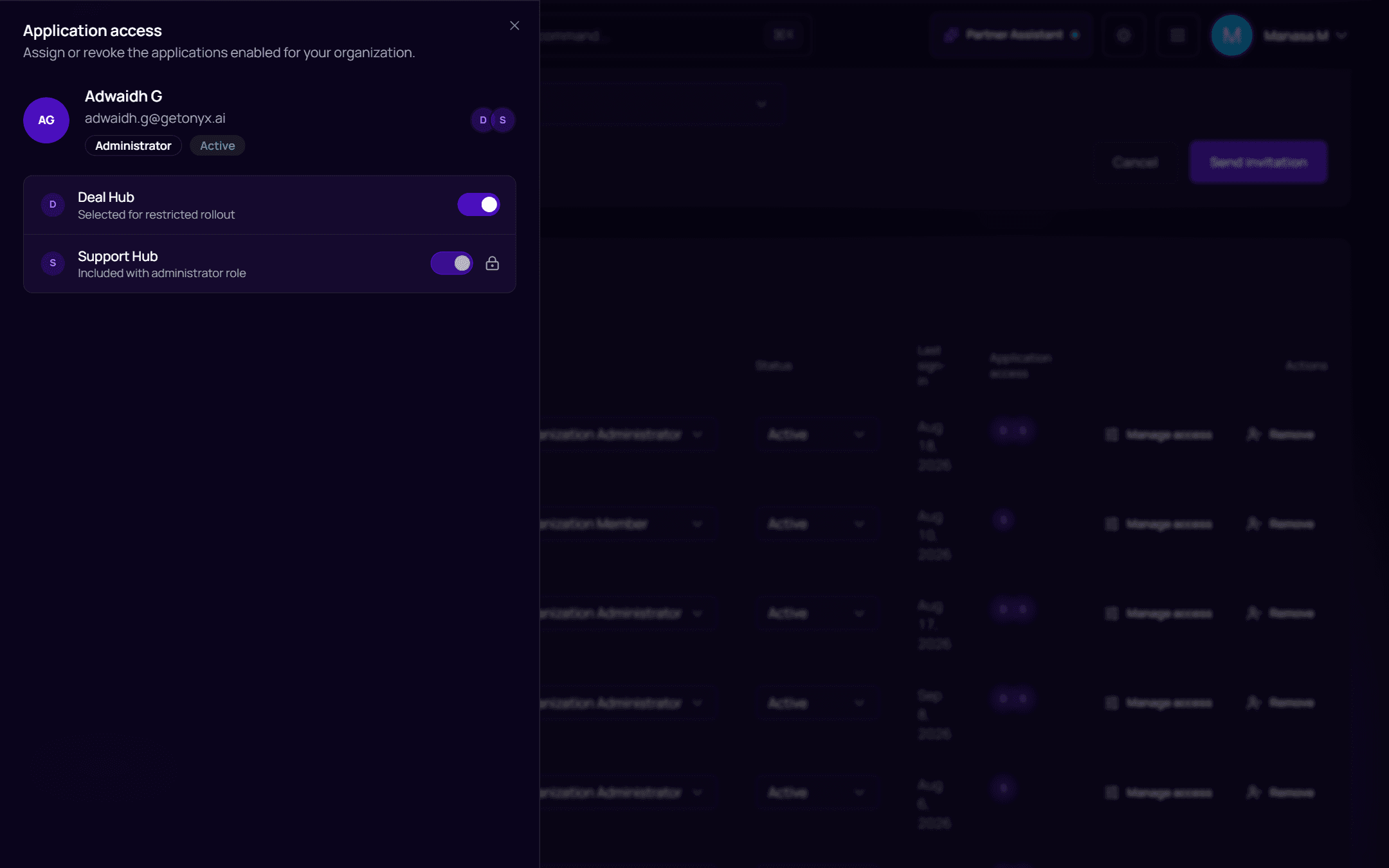
Turn each hub on or off. You'll see The member is now assigned this application or …no longer assigned….
- Administrators get every standard hub automatically — Included with administrator role (the toggle is locked).
- A hub in a controlled rollout shows Selected for restricted rollout or Not selected.
- Access can't be changed for suspended or removed members.
Pending invitations
Secure invitations that are awaiting acceptance, with each Email, Role and when it Expires:
- Resend — send the invitation again (Invitation resent)
- Revoke — cancel it (Invitation revoked)
Access requests
When someone requests access to a hub, it appears under Access requests — application access requests from your members — showing the Requester, Application, Organization and when it was Requested.
- Approve — the person can now open the hub (Access approved)
- Deny — they were not granted it (Request denied)
If another administrator decided first, you'll see Already decided by another administrator.
Removing someone
Choose Remove on their row and confirm. You'll see Member removed.